
Manage Tests
Test Management allows you to view and manage all tests that have been queued or run across your organization. You can filter the test queue by date range, organization, client, project, site, page, device, location, status, and priority. From the queue you can open completed test results or cancel queued or running tests (if you have the required permissions). This is useful for monitoring test runs, troubleshooting stuck or failed tests, and freeing up capacity by canceling tests you no longer need.
Let's get started!
1. Open Test Management
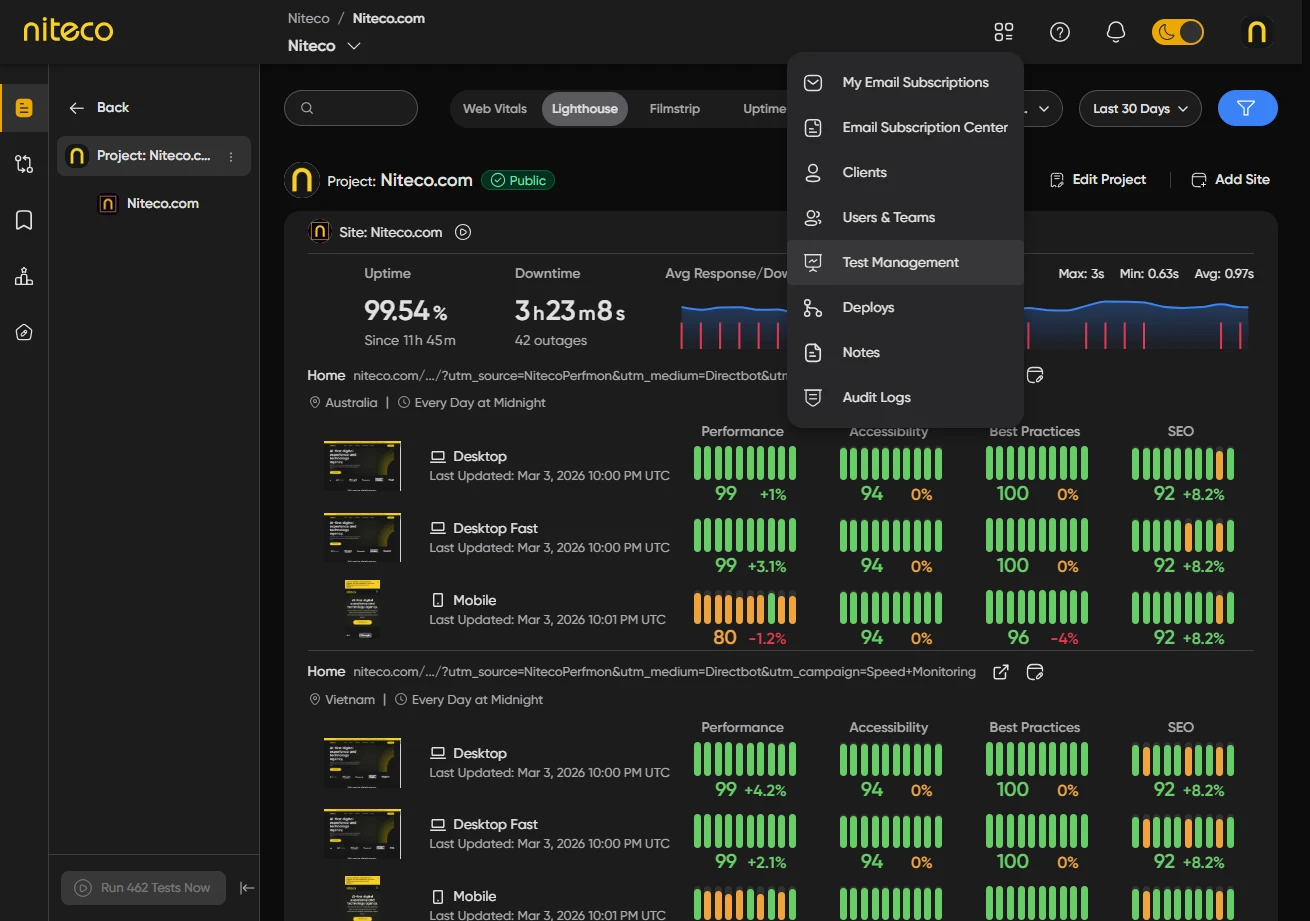
Click on Settings in the top menu.
Click on Test Management.
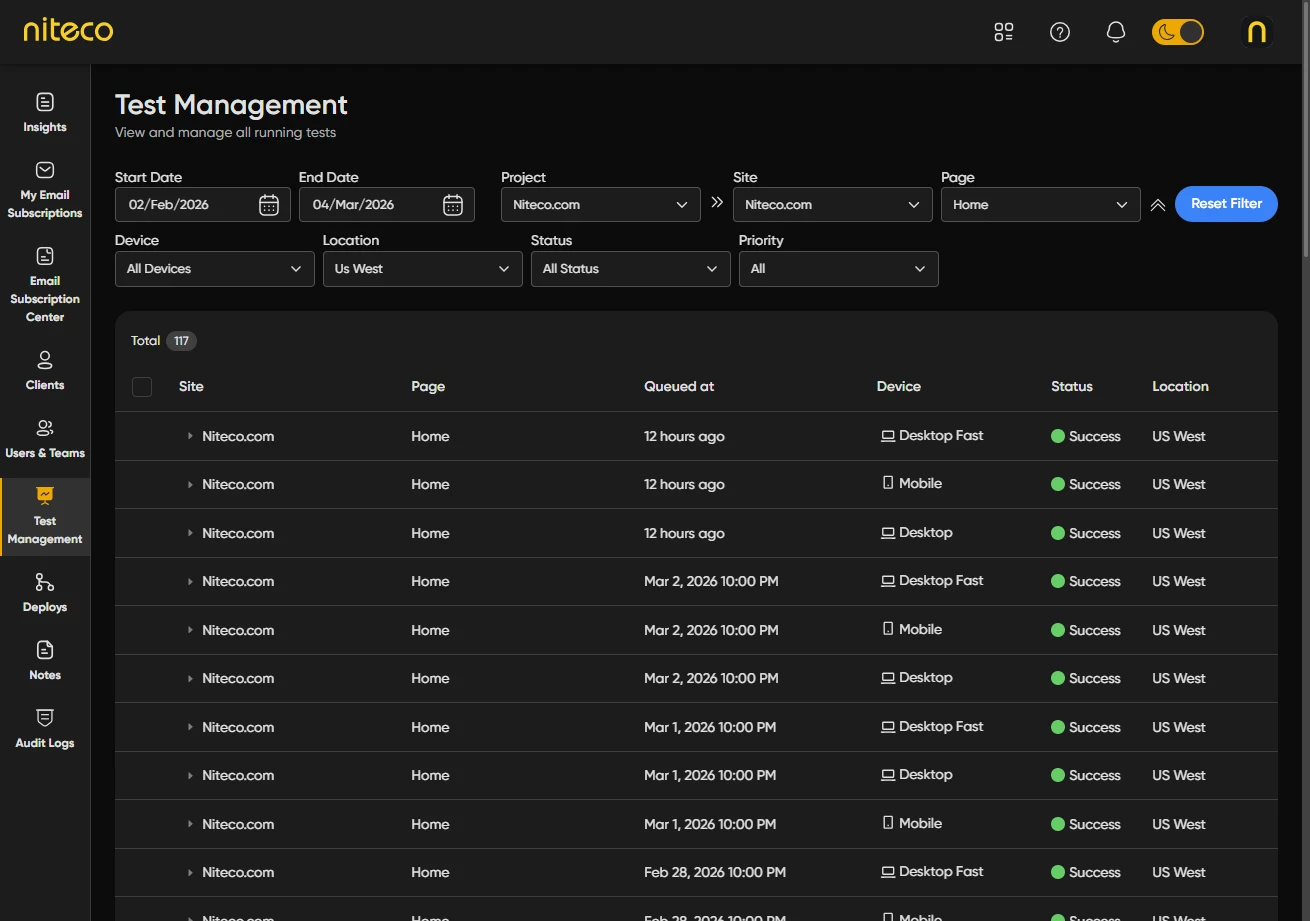
You will see the Test Management page with a filter toolbar at the top and a table listing tests that match your current filters.
2. Filter the Test Queue
Use the toolbar to narrow down which tests appear in the table.

Date range – Select the start and end date for when tests were queued. Only tests within this range are shown.
Organization – (Super admins only.) Choose which organization’s tests to view, or All to see tests across organizations.
Client – Choose a client to limit results to that client’s projects and sites. If you have access to only one client, this may be pre-selected.
Project – After selecting a client, choose a project to limit results to that project’s sites and pages.
Site – After selecting a project, choose a site to limit results to that site’s pages.
Page – After selecting a site, you can optionally filter to a specific page.
Click on the chevron to show more filter options:
Device – Filter by Desktop or Mobile, or All to include both.
Location – Filter by the test location (e.g. where the test was run from), or All Locations.
Status – Filter by test status:
- Queued – Test is waiting to run
- Running – Test is currently running
- Success – Test completed successfully
- Failed – Test failed
- Timeout – Test did not complete in time
Priority – Filter by queue priority (e.g. High, p1, p2, … p9).
Click on Reset filter to clear the filters and restore default values.
3. View Test Details and Results
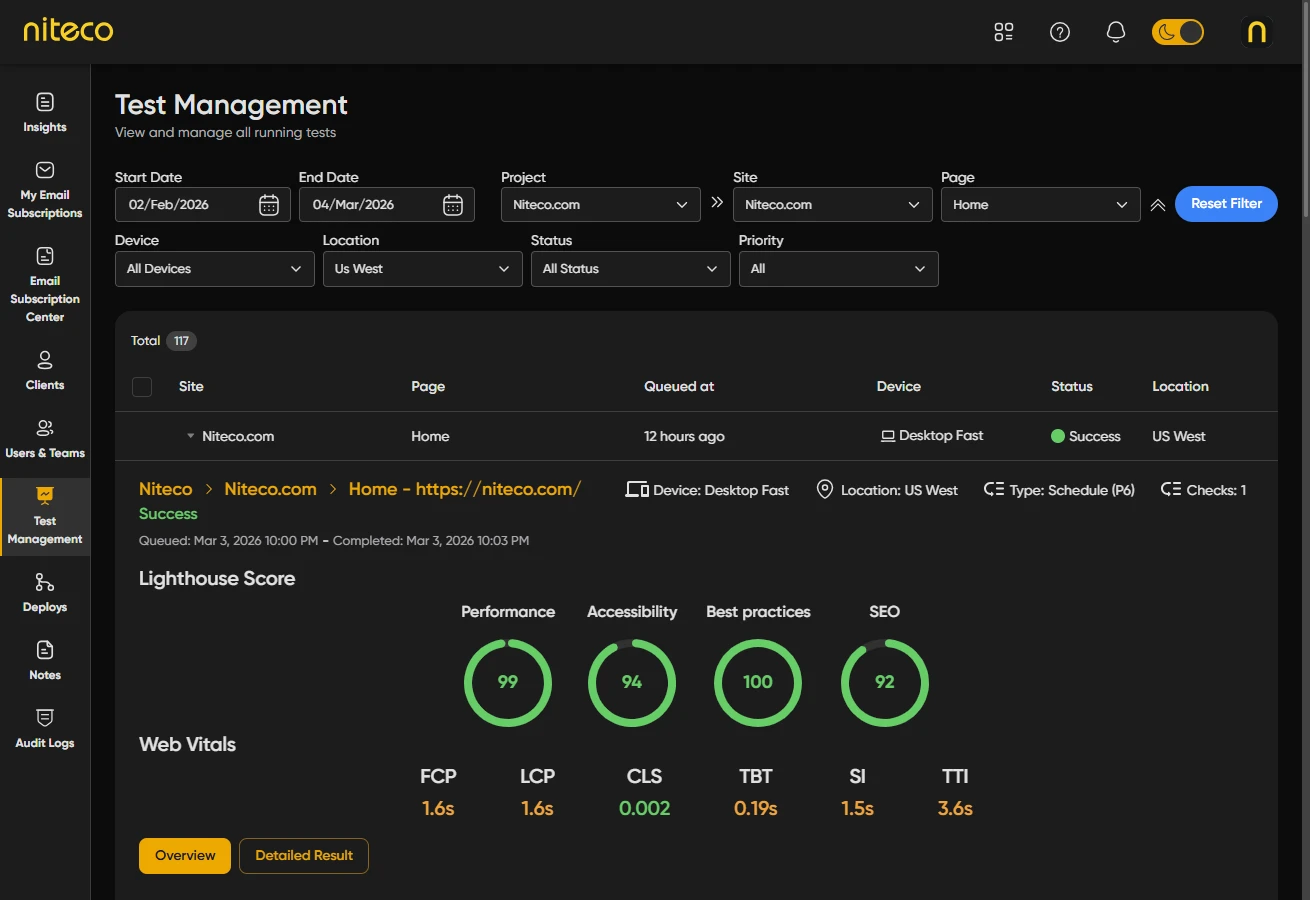
The table shows one row per test with columns: Site, Page, Queued at, Device, status, and Location.
Expand a row – Click on a row to expand it and see more details about that test run, including priority, run count, and when it was queued. For tests with status Success, you can open the full performance report from the expanded view.
Scroll for more – The list loads more tests as you scroll down. Use the filters to focus on a smaller set of tests if the list is large.
4. Cancel Tests
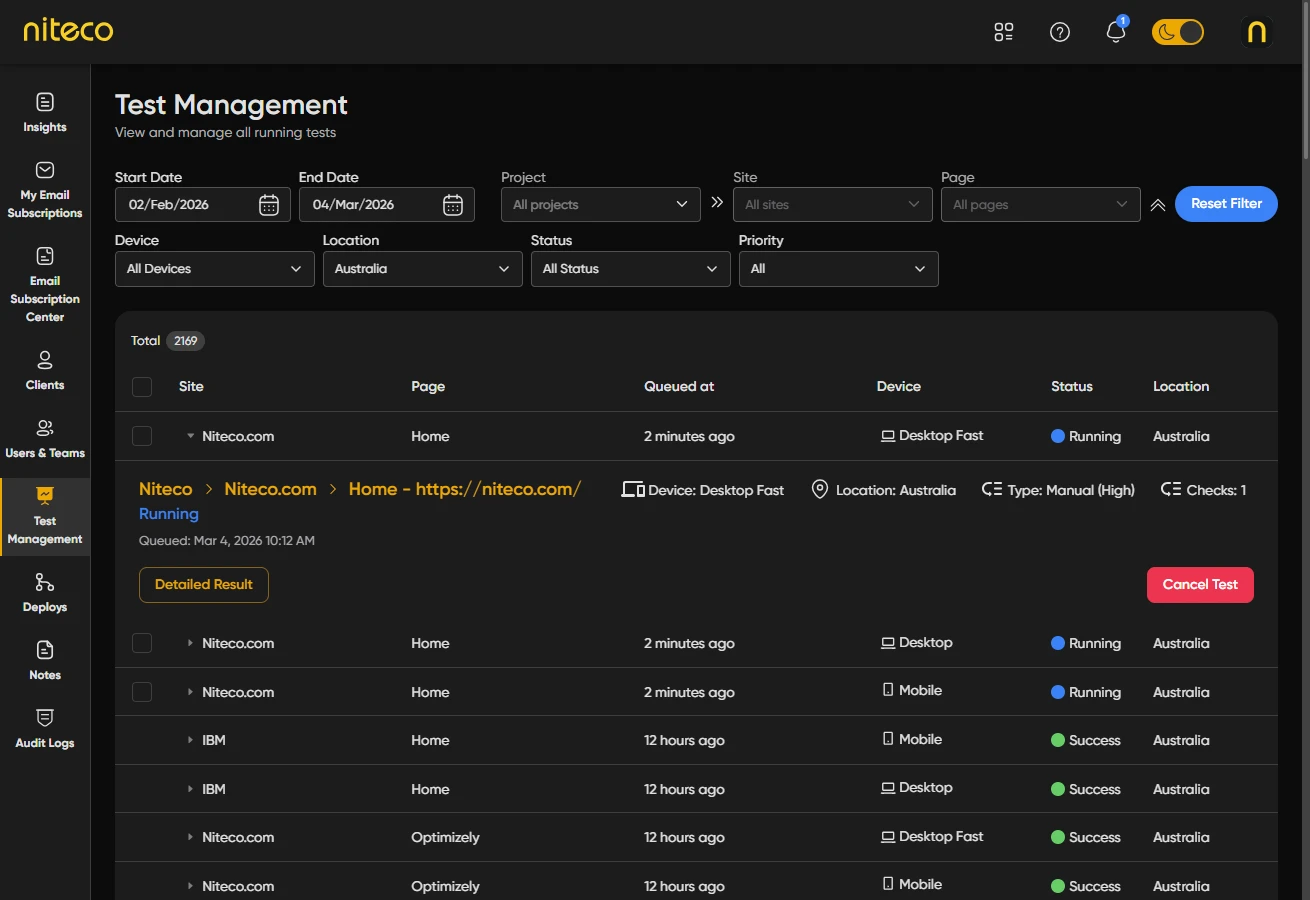
You can cancel tests that are Queued or Running which you no longer need.
Cancel a single test – Expand the test row and click on the cancel action in the expanded details. This option is available only if you have admin rights for the client or project that owns the test.
Cancel multiple tests – Select the checkboxes next to the tests you want to cancel, then click on the Cancel (trash) icon in the toolbar above the table. Again, you can only cancel tests for clients or projects where you have admin rights. Organization owners can cancel any test in their organization.
A confirmation dialog appears before the tests are canceled. After cancellation, the list refreshes automatically.
InfoIf tests appear stuck in Queued or Running, see our Why Are Tests Stuck? FAQ for possible causes and next steps.
Updated 8 months ago