
Manage Your Organization
If you are an organization owner you can manage your organizations details, global test and uptime monitoring settings and access your organizations API key easily in your user account area.
Let's get started:
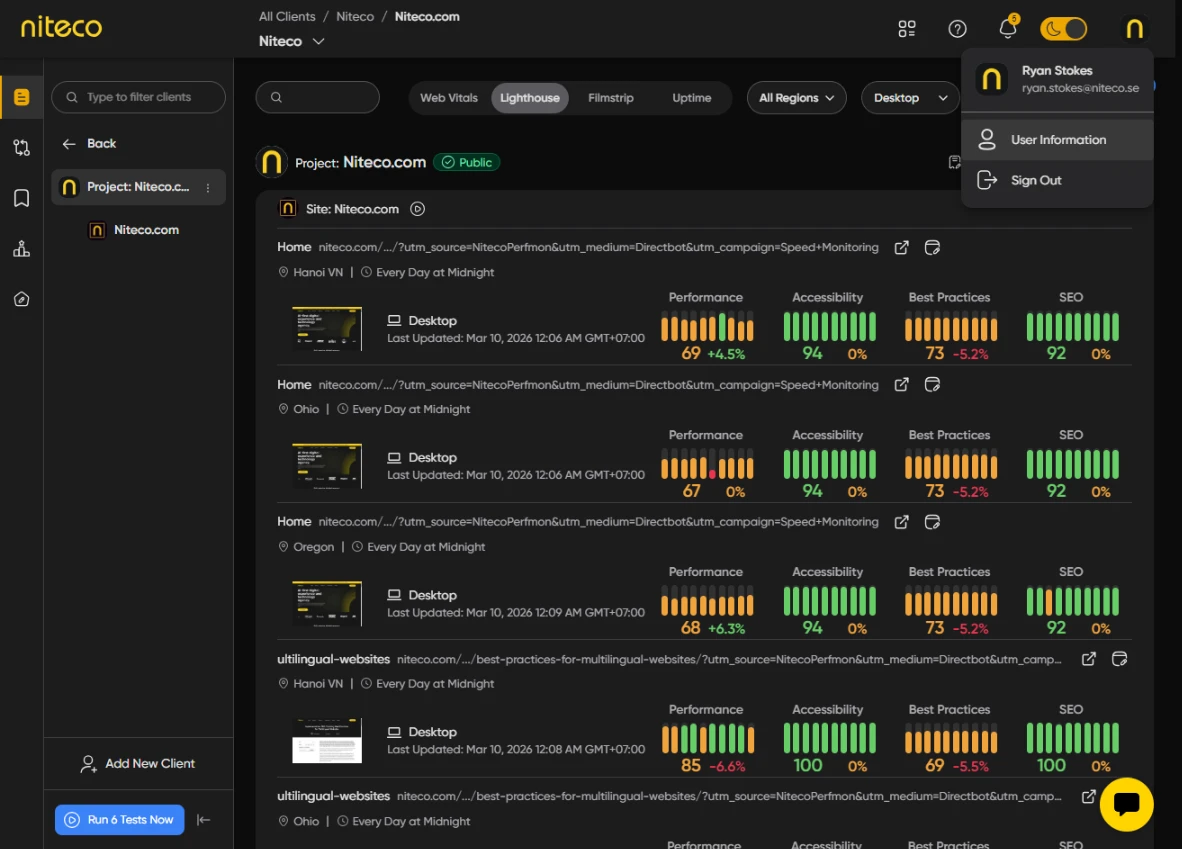
Click on your user profile at the top right of the page and select User Information: and then click the My Organization tab to view your organizations info and settings.
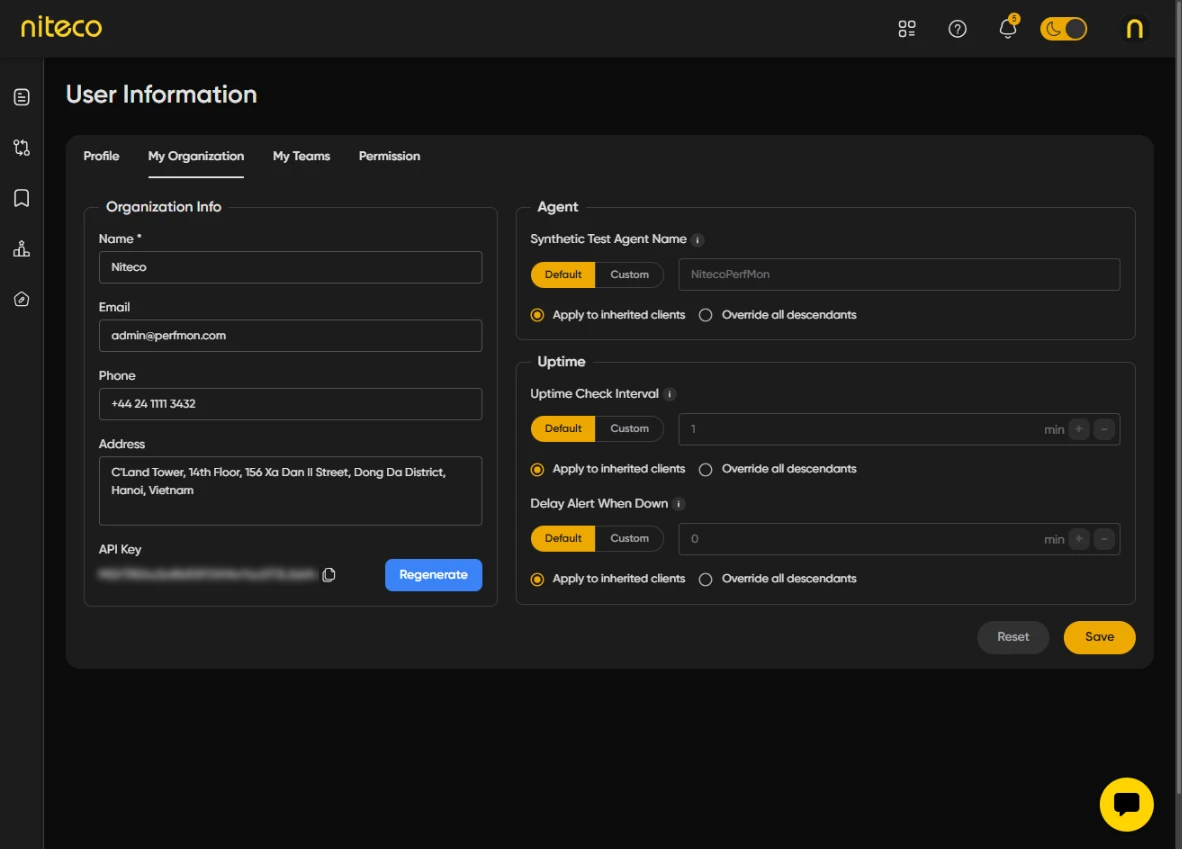
Edit Your Organization's Info
Edit your organization's name, contact details and view your organization level API key.
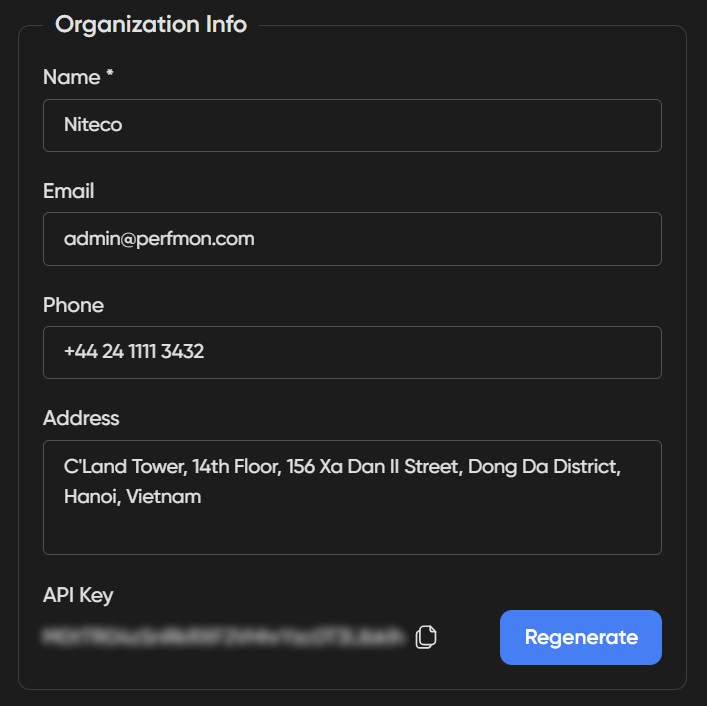
Info Fields
- Name: The organization's name.
- Email: The organization's email.
- Phone: The organization's Phone number.
- Address: The organization's Address.
- API Key: The organization's API key. (*This is a private org-level key — each team member has their own individual API keys, scoped to the specific projects and sites they've been assigned roles on).
Edit Organization Test Agent Settings
Set the default synthetic test agent settings for your organization.
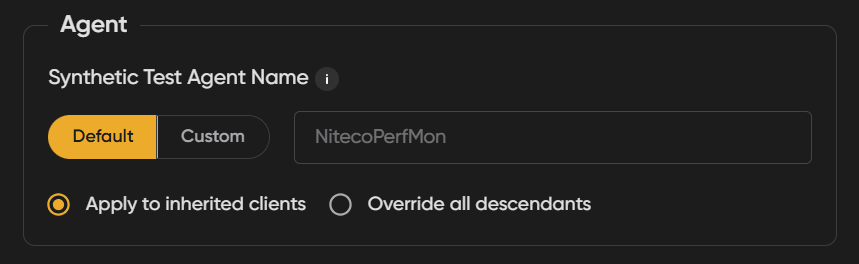
Agent Fields
- Synthetic Test Agent Name:
A custom substring added to the User-Agent header in the browser user agent when performing synthetic tests.
Default:
Use the default agent name is NitecoPerfMon, which all clients, projects, sites, and pages inherit by default.
Custom:
Use a custom agent name. In most cases the default agent name is sufficient, but there are situations where you may want to change it:
- Bypass bot detection: Some sites block or alter responses for known automation user agents. If your site is blocking the default agent name, you can change it to a whitelisted name that your site accepts, ensuring your tests are not blocked.
- Avoid skewing analytics: Synthetic test traffic can appear as real user sessions in your analytics. You can change the agent name to one your analytics system ignores, so test traffic does not affect your data.
- Test geo or device-specific content: Some sites serve different content based on the user agent string. You can change the agent name so your synthetic tests receive the same content a specific device or region would, ensuring you are testing the correct user experience.
Inheritance Options:

- Apply to inherited clients: The custom agent name is applied at this level but does not override settings on any descendants that have already defined their own custom agent name.
- Override all descendants: Applies this agent name to all clients, projects, sites, and pages beneath this level, clearing any custom agent names they may have set.
Edit Your Organization's Uptime Monitoring Settings
Set the default uptime monitoring settings for your organization.
Uptime Fields
- Uptime Check Interval
- Delay Alert When Down
Uptime Check Interval:
The frequency at which uptime checks are performed on your sites.
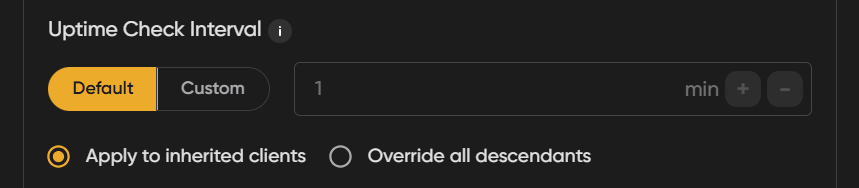
Default:
Use the default check interval of 1 minute, which all clients, projects, sites, and pages inherit by default.
Custom:
Set a custom check interval in minutes to suit your monitoring needs.
Delay Alert When Down:
The amount of time to wait before sending an alert when a site is detected as down. This helps avoid unnecessary alerts for brief or transient outages.
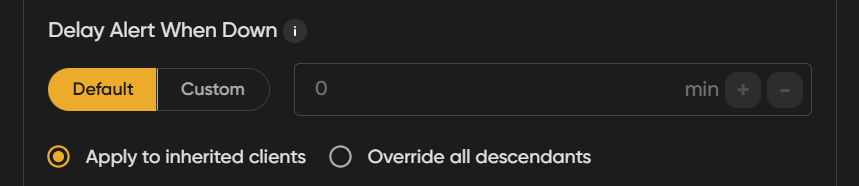
Default:
Use the default delay of 0 minutes, meaning alerts are sent immediately when a site is detected as down.
Custom:
Set a custom delay in minutes before alerts are triggered. This is useful if your site occasionally experiences brief downtime that resolves itself without intervention.
Inheritance Options
Inheritance Options:
- Apply to inherited clients: The setting is applied at this level but does not override settings on any descendants that have already defined their own custom delay.
- Override all descendants: Applies this setting to all clients, projects, sites, and pages beneath this level, clearing any custom delays they may have set.
Updated 6 months ago