
Email Subscriptions
Email subscriptions control who receives performance reports, alerts, and competitor reports by email. You can manage your own subscriptions in My Email Subscriptions, and—if you have client admin rights—view and manage all subscribers and competitor subscriptions in Email Subscription Center. Who receives alerts for a given client or project is set in Alert Settings; what each person receives (e.g. which reports, how often) is managed here.
Let's get started!
My Email Subscriptions (Your Own)
My Email Subscriptions shows the list of email reports and alerts you are subscribed to (by project and site). You can add, edit, or remove subscriptions.
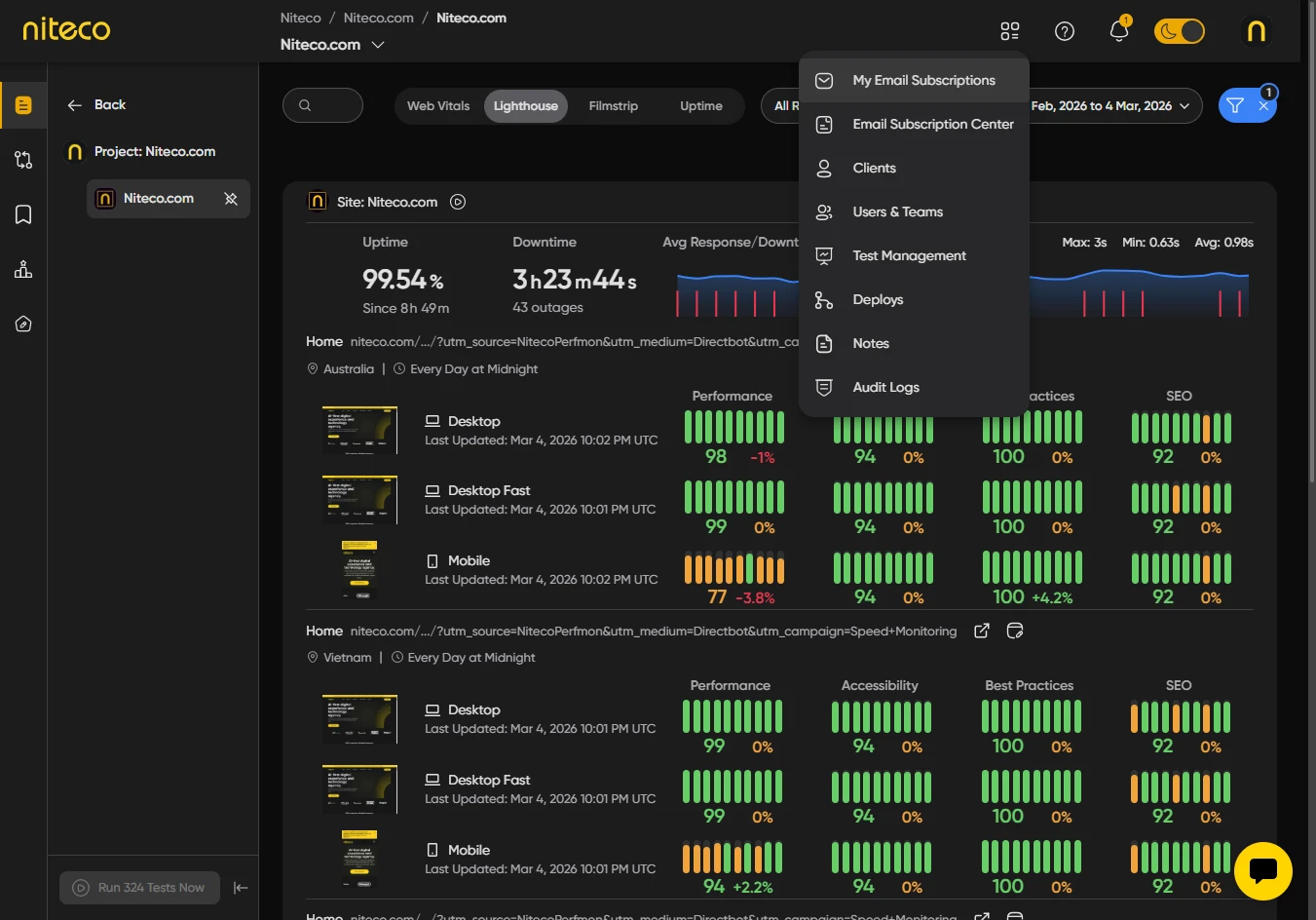
Click on Settings in the top menu.
Click on My Email Subscriptions.
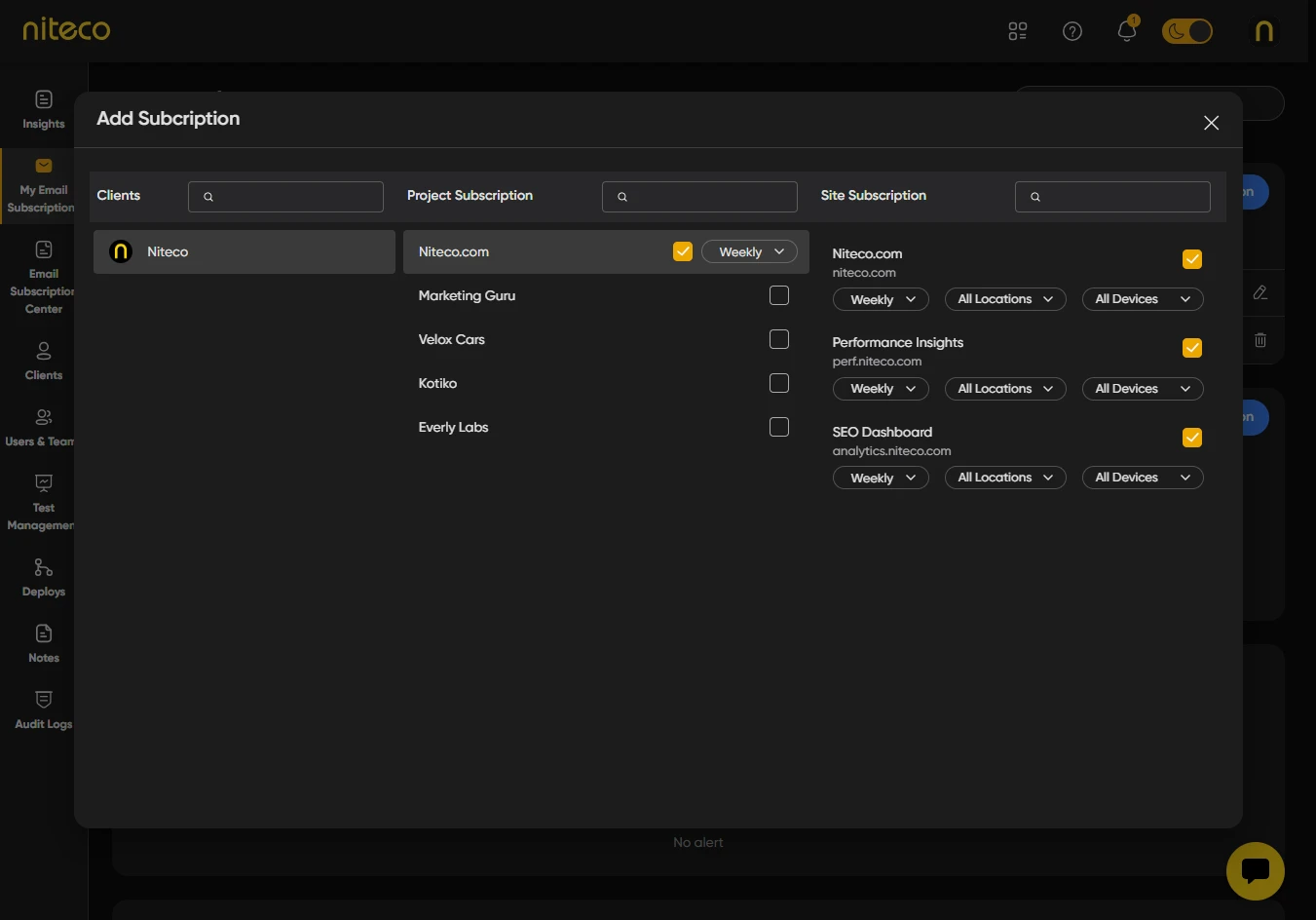
You will see My Email Subscription List with a search box and a table. The table lists your subscriptions by Name (client/project/site), Frequency, and Locations. Expand a row to see project or site-level subscriptions. Use the edit or remove actions to change or delete a subscription.
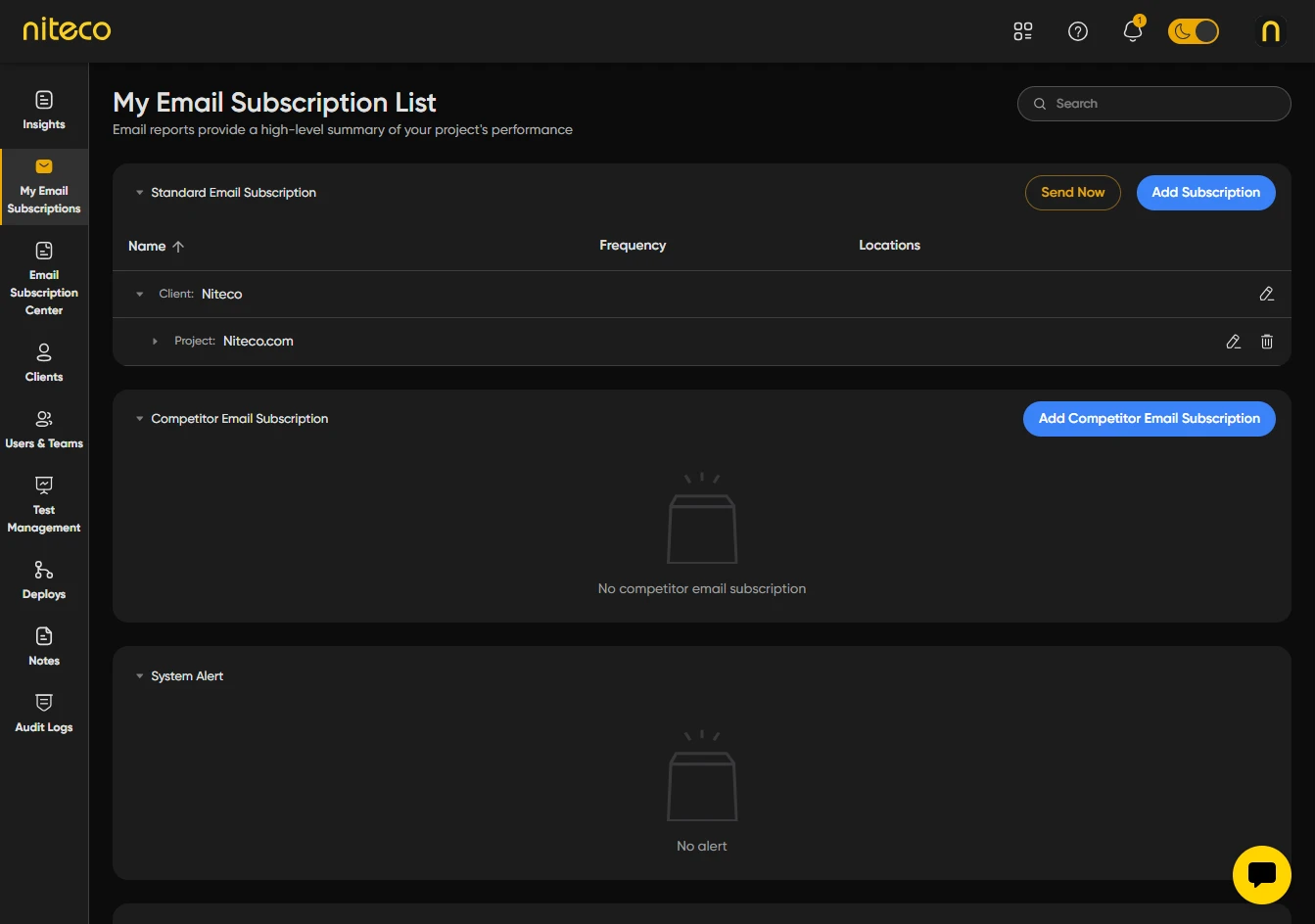
To add a new subscription, use Add (or the add subscription control on the page) and choose the client, project, and optionally site, then set Frequency and Locations. Save to subscribe.
Open Email Subscription Center (Admins)
Email Subscription Center is for users with client admin rights. It lets you see all users and teams that have at least one email subscription and manage competitor email subscriptions.
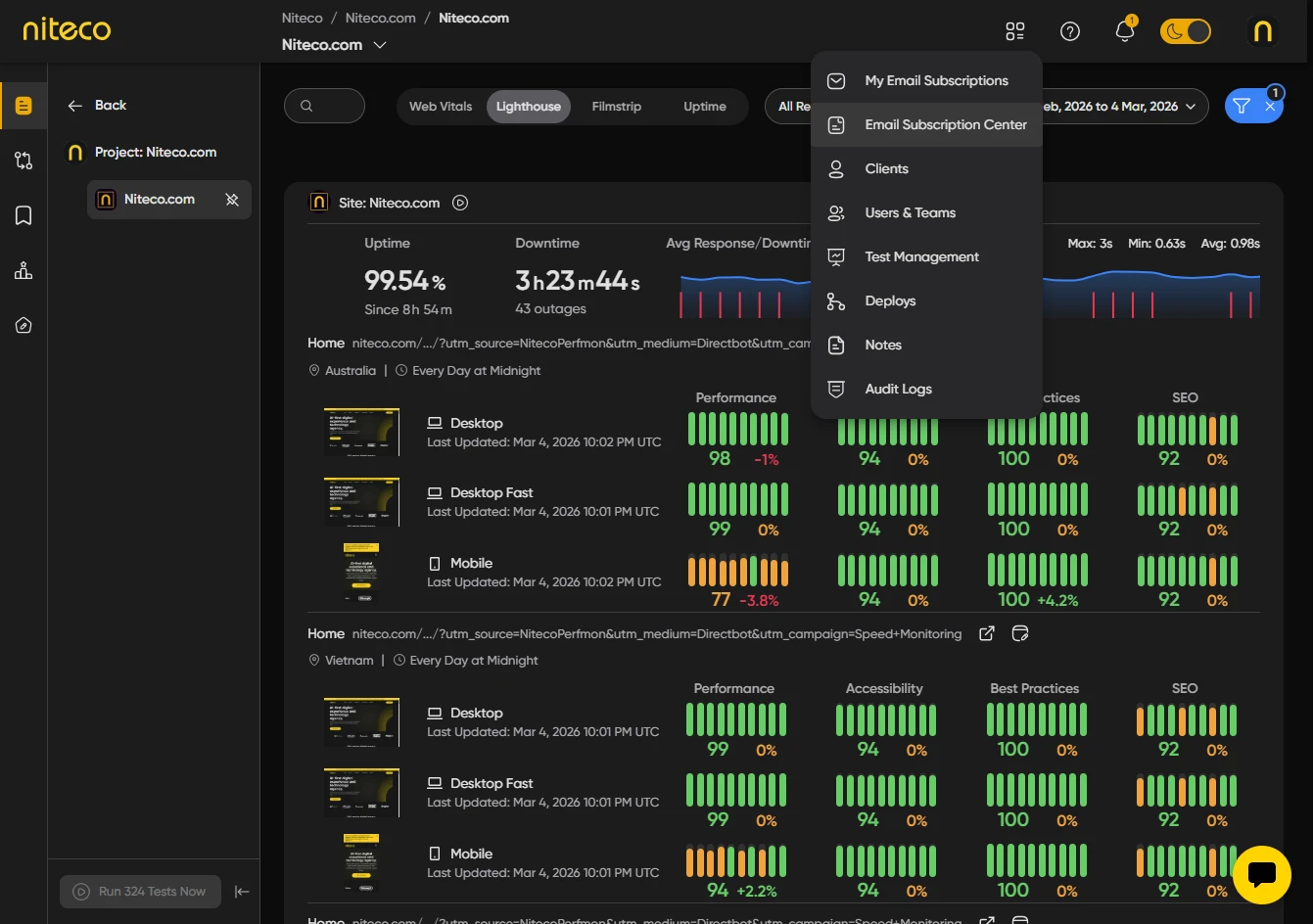
Click on Settings in the top menu.
Click on Email Subscription Center.
You will see the Email Subscription Center page with two tabs: Manage Subscribers and Manage Competitor Email Subscriptions.
Manage Subscribers
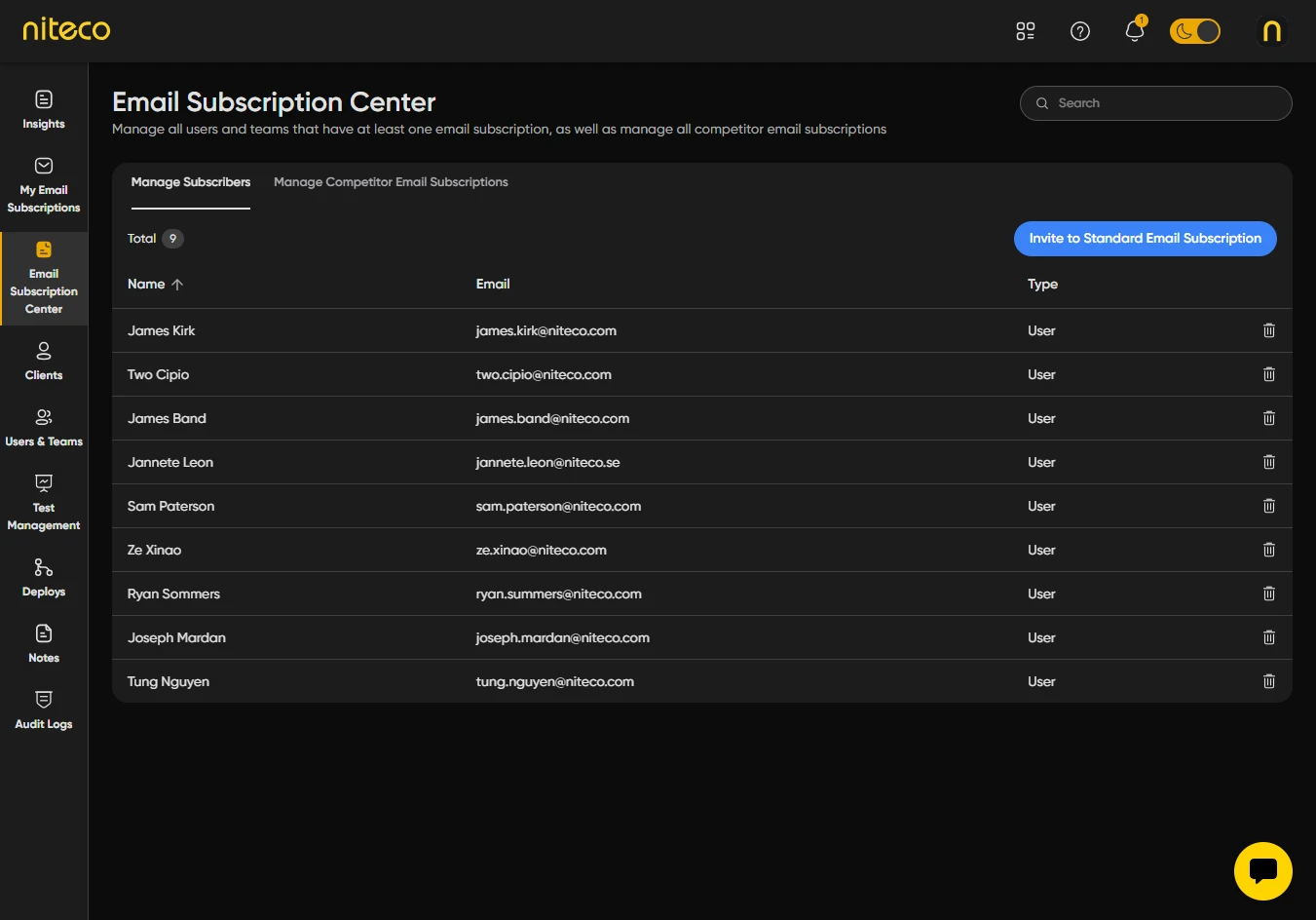
On the Manage Subscribers tab you see a table of all subscribers (users and teams) that have at least one email subscription. Columns include Name, Email, and Type (user or team).
Search – Use the search box to filter subscribers by name or email.
Invite users or teams – Click on Invite to Standard Email Subscription to open the invite dialog.
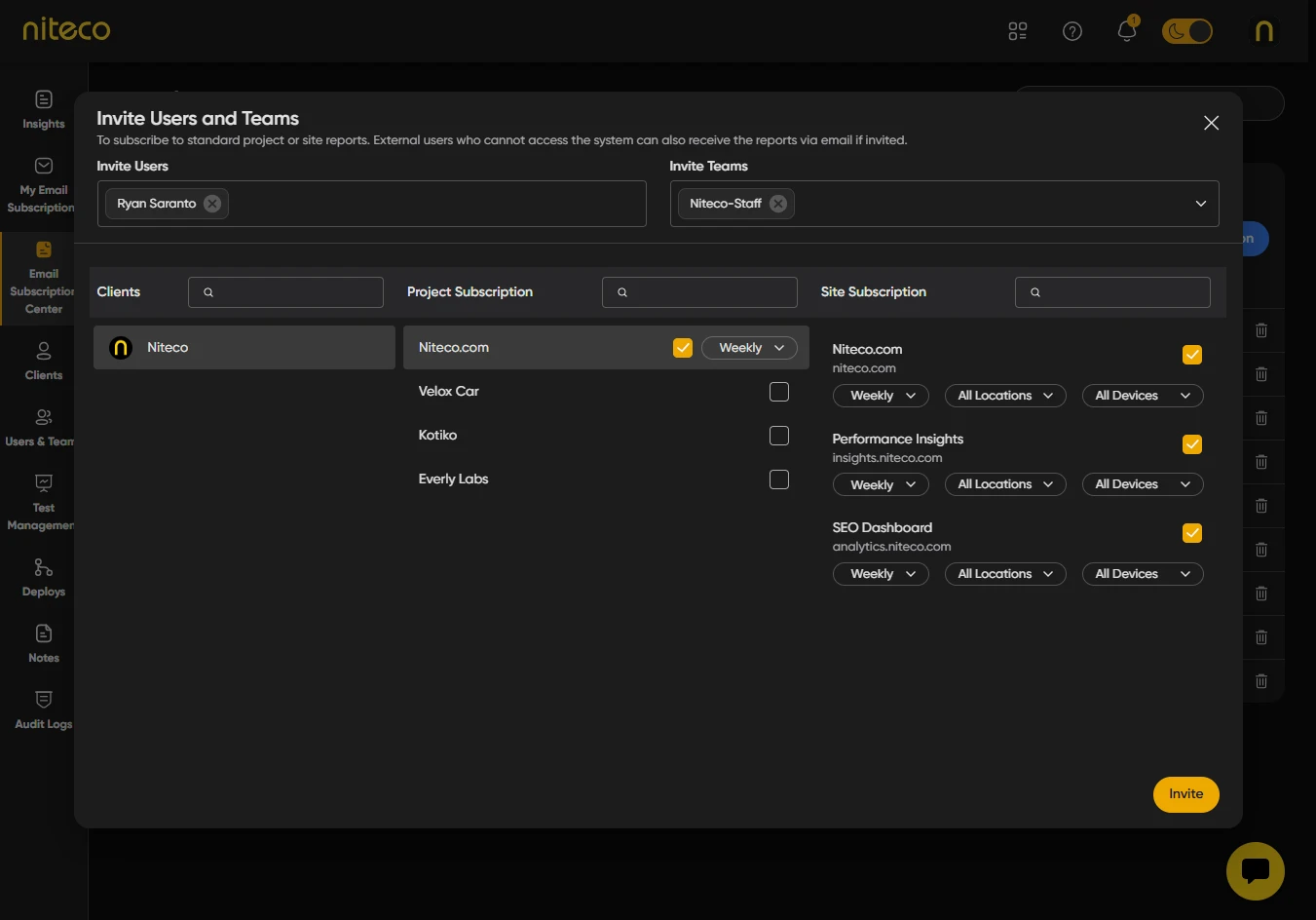
You can invite users and teams to receive standard project or site reports by email (including external users who do not have access to the system). Fill out the form and save to add them as subscribers.
View a subscriber’s subscriptions – Click on a row to open that subscriber’s detail page. You will see tabs such as Standard Email Subscription, Team Email Subscription, and Competitor Email Subscription. For organization owners, System Alert and Metric Threshold Alert tabs also appear. Use each tab to see and manage that type of subscription for the selected user or team.
Remove a subscriber – Click on the delete (trash) icon on the row to remove that user or team from having any email subscriptions. A confirmation dialog appears before the subscription is deleted.
Manage Competitor Email Subscriptions
Click on the Manage Competitor Email Subscriptions tab.
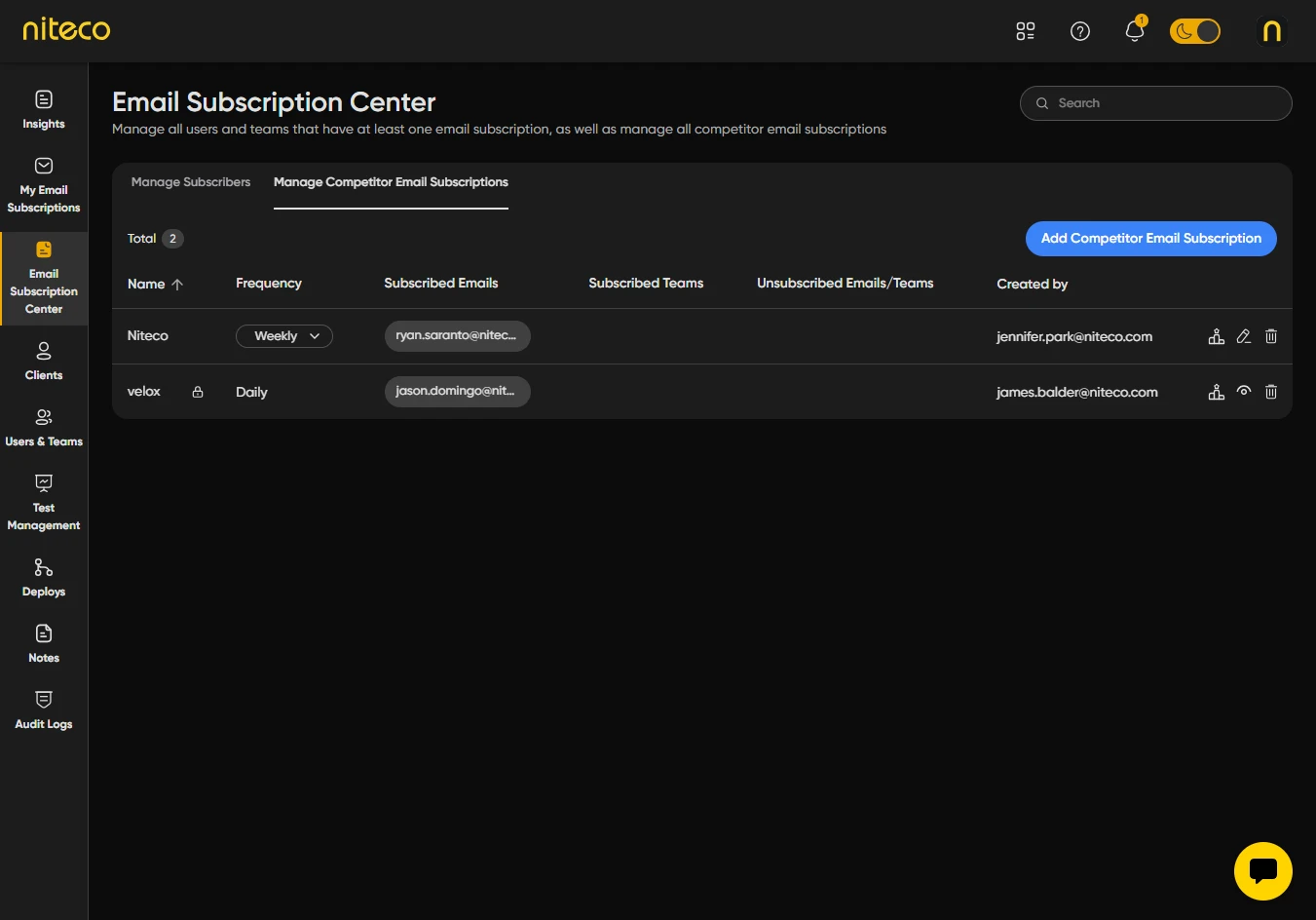
You will see a table of competitor email subscriptions. Columns include Name, Frequency, Subscribed Emails, Subscribed Teams, Unsubscribed Emails/Teams, and Created by.
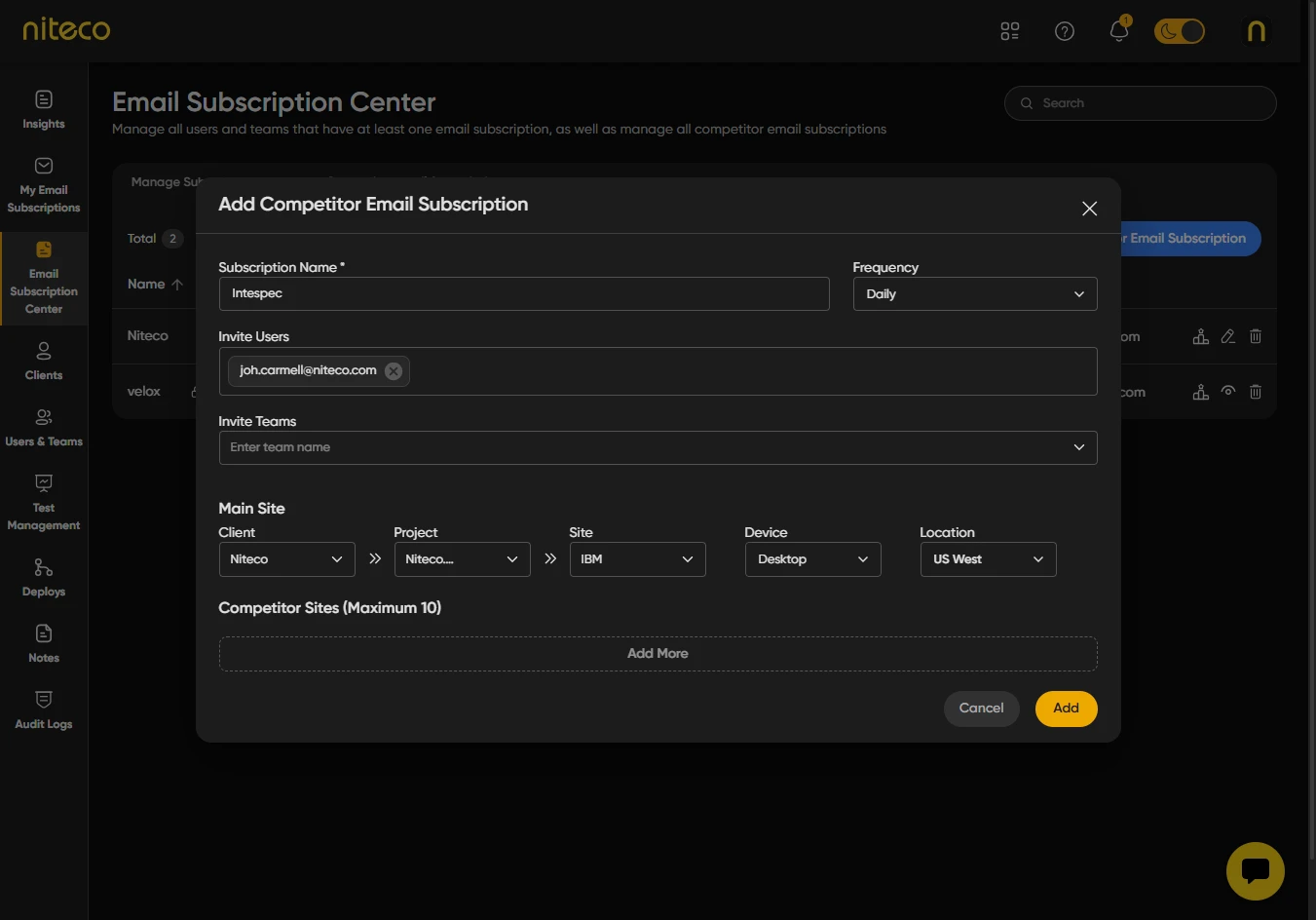
Add a competitor subscription – Use the Add (or add subscription) control to create a new competitor subscription. Set the name, frequency, and which users or teams are subscribed.
Edit or remove – Use the edit or delete actions on a row to change or remove a competitor subscription.
How This Relates to Alert Settings
Alert Settings (at client or project level) define who receives notifications for that client or project—the users, teams, and webhook integrations you add there. Email Subscription Center and My Email Subscriptions define what each person receives: which projects or sites they get reports for, how often, and from which locations. After you add someone in Alert Settings, they can manage their own report and alert preferences in My Email Subscriptions; admins can manage all subscribers and competitor subscriptions in Email Subscription Center.
Updated 8 months ago