
AB Testing
AB Testing lets you run experiments on a page by applying suggested optimizations (such as blocking third-party scripts, deferring JavaScript, or injecting content) and then comparing the result with the original test. You choose which suggestions to apply, run the test, and Niteco Performance Insights runs both a control test (unchanged) and an experiment test (with your chosen changes). You can then compare the two in the Compare Tests view to see the impact on performance, accessibility, SEO, and best practices.
Let's get started.
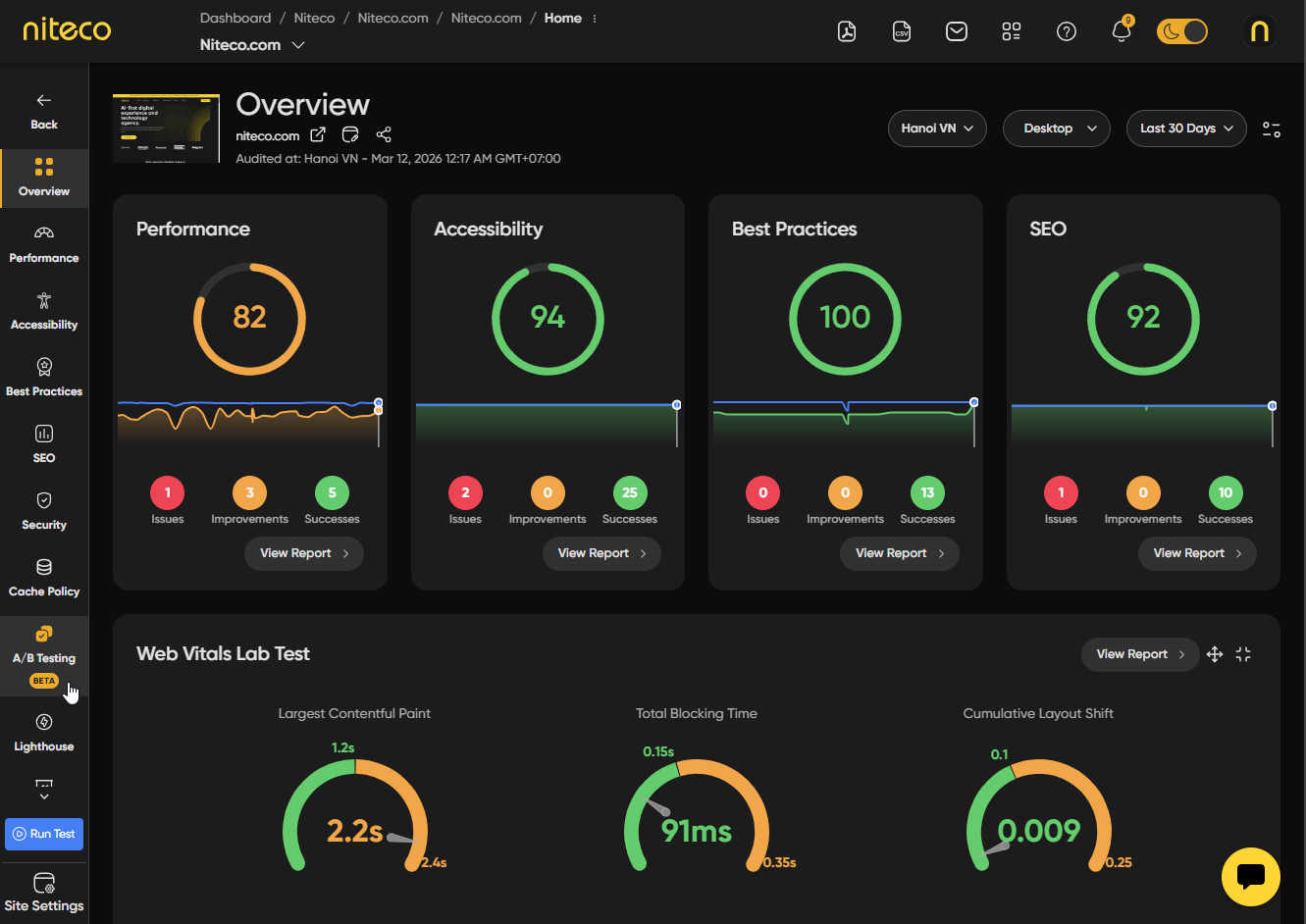
Navigate to the client → project → site → page you want to test from the Insights dashboard. Open the page report and select the AB Testing tab from the left-hand menu.
(*The AB Testing view is based on the currently selected test. Make sure you are viewing the correct test that you wish to run an experiment with).
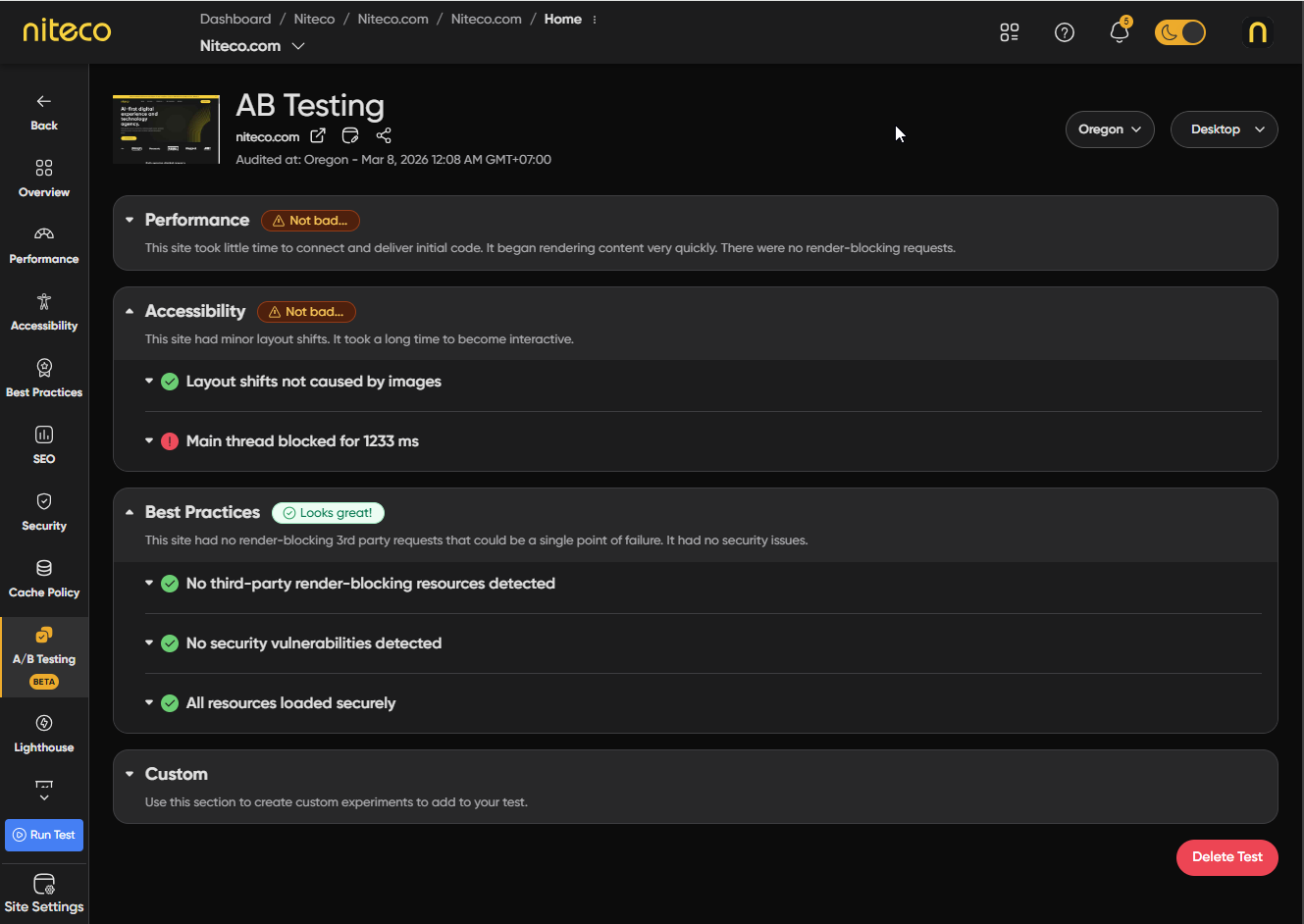
When you open the AB Testing tab, your selected test is analyzed and a list of suggested optimizations you can apply to the page is generated— such as blocking third-party scripts, deferring JavaScript, or injecting content. These suggestions are grouped into four categories: Performance, Accessibility, Best Practices, and Custom. Each category displays a grade along with a list of issues or opportunities. You can expand any issue to view its relevant suggestions.
Performance
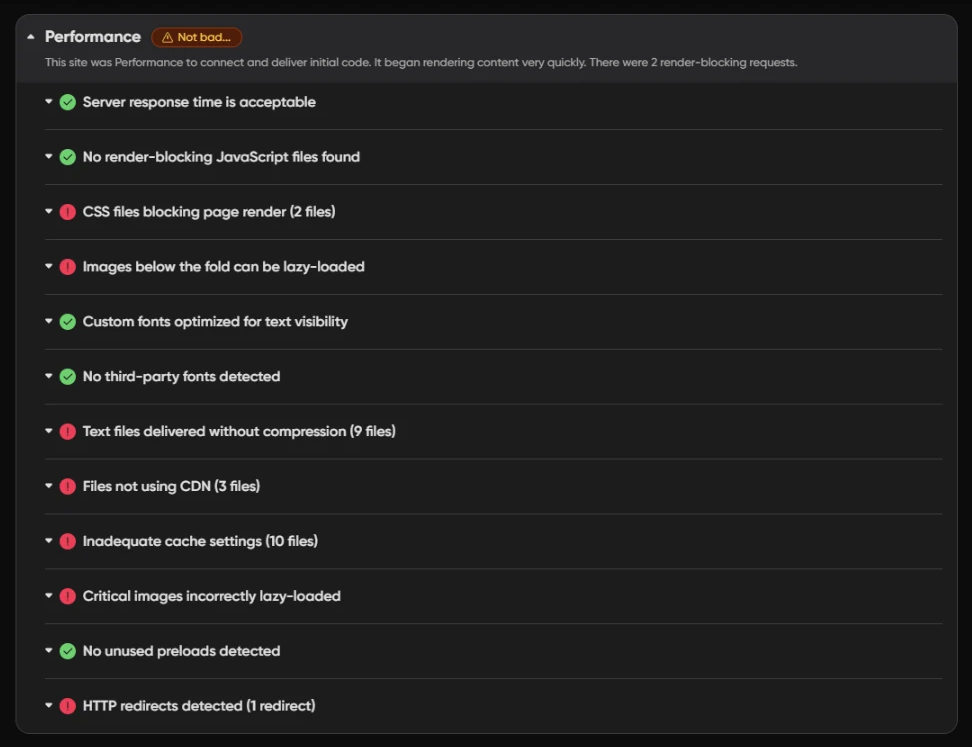
Suggestions aimed at improving load time and responsiveness, such as blocking specific third-party requests or marking scripts load with defer or async so they do not block the main thread.
Accessibility

Suggestions related to accessibility audits, so you can test the effect of potential fixes before making changes to your site.
Best Practices:
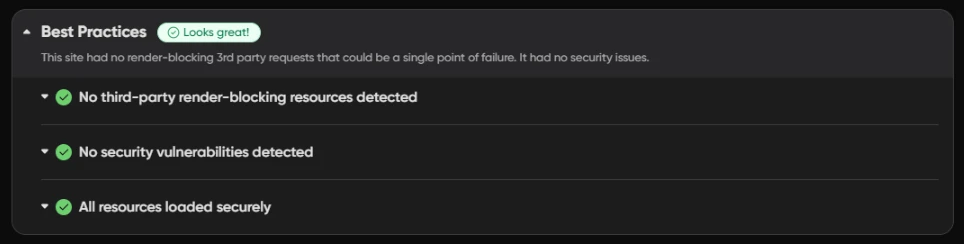
Suggestions tied to best-practice audits, such as security, deprecated APIs, and resource loading.
Custom
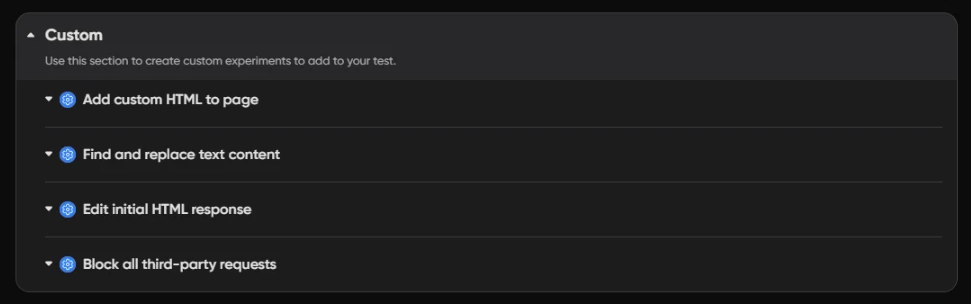
Includes Block all third-party requests, which runs a test with all third-party requests blocked so you can see how your page performs without external scripts or resources. Other custom experiments such as inserting content, find/replace, or editing response HTML may also appear here when data is available.
Selecting Suggestions
To include a suggestion in your experiment, expand the relevant issue and check the Apply Suggestion next to the suggestions you want to apply. Depending on the suggestion, you may need to configure it before running the test — below are some examples of the configuration options you may encounter:
Add lazy loading to images:
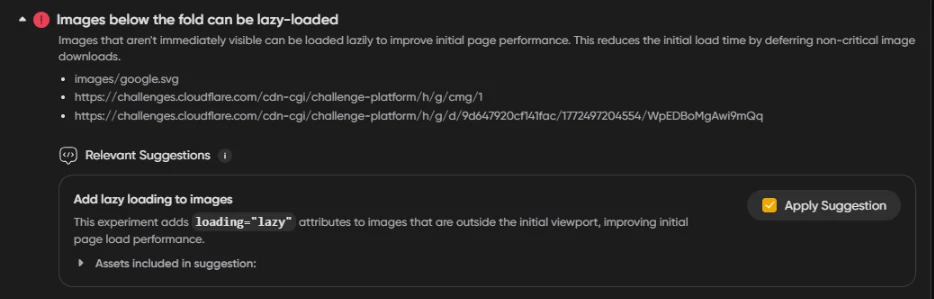
Images that are not visible when the page first loads do not need to be downloaded immediately. This suggestion adds a loading="lazy" attribute to those images so the browser only loads them as the user scrolls down, reducing the initial page load time and improving your performance score.
Fonts hosted on third-party domains::
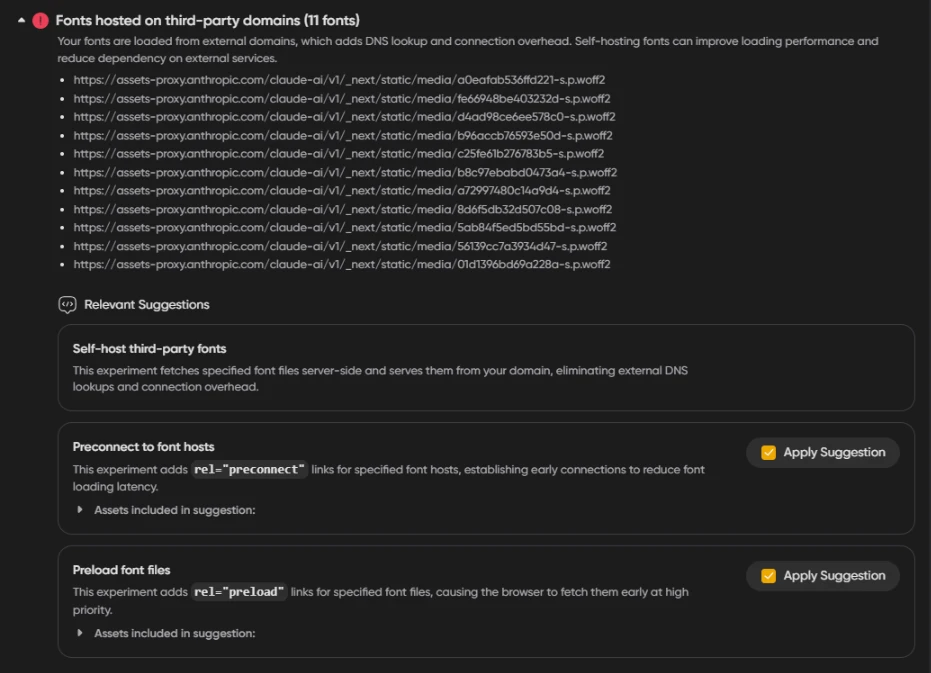
When fonts are loaded from external domains, the browser has to perform a DNS lookup and establish a connection to that domain before it can download the font, adding overhead to your page load time. These suggestions give you several ways to reduce that impact — you can self-host the fonts so they are served directly from your domain, add preconnect hints so the browser establishes the external connection early, or preload specific font files so the browser fetches them at high priority before they are needed. Each approach can improve your performance score by reducing the time it takes for fonts to load and for text to become visible on the page.
Main thread blocked:
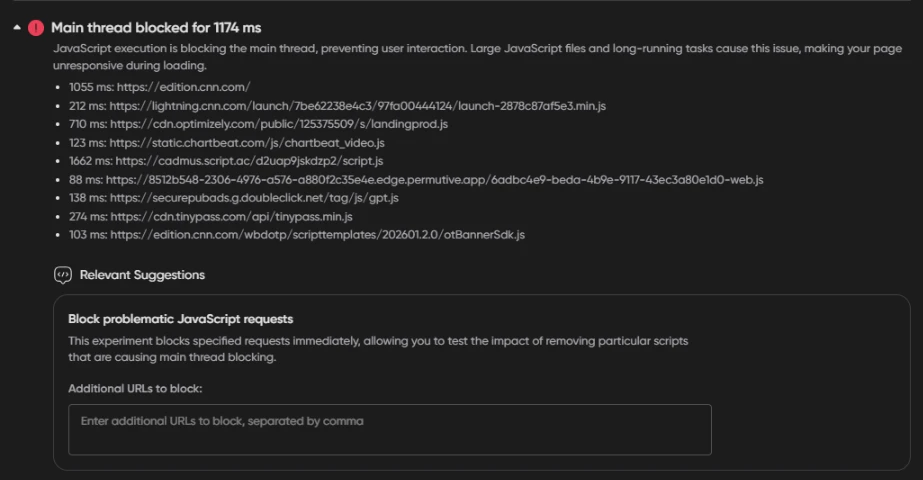
When JavaScript files take too long to execute, they block the main thread and prevent the browser from responding to user interactions, making your page feel unresponsive during loading. This suggestion lets you block specific scripts that are the biggest contributors to main thread blocking — such as third-party analytics, ad scripts, or optimization tools — so you can measure how much each one is impacting your performance score before deciding whether to remove or replace them on your site.
Running an Experiment
Once you have selected and configured your suggestions, click the Run Test (N suggestion(s) applied) button at the bottom of the page. NitecoPerfMon will queue two individual tests — a control test (the page unchanged) and an experiment test (with your selected suggestions applied).
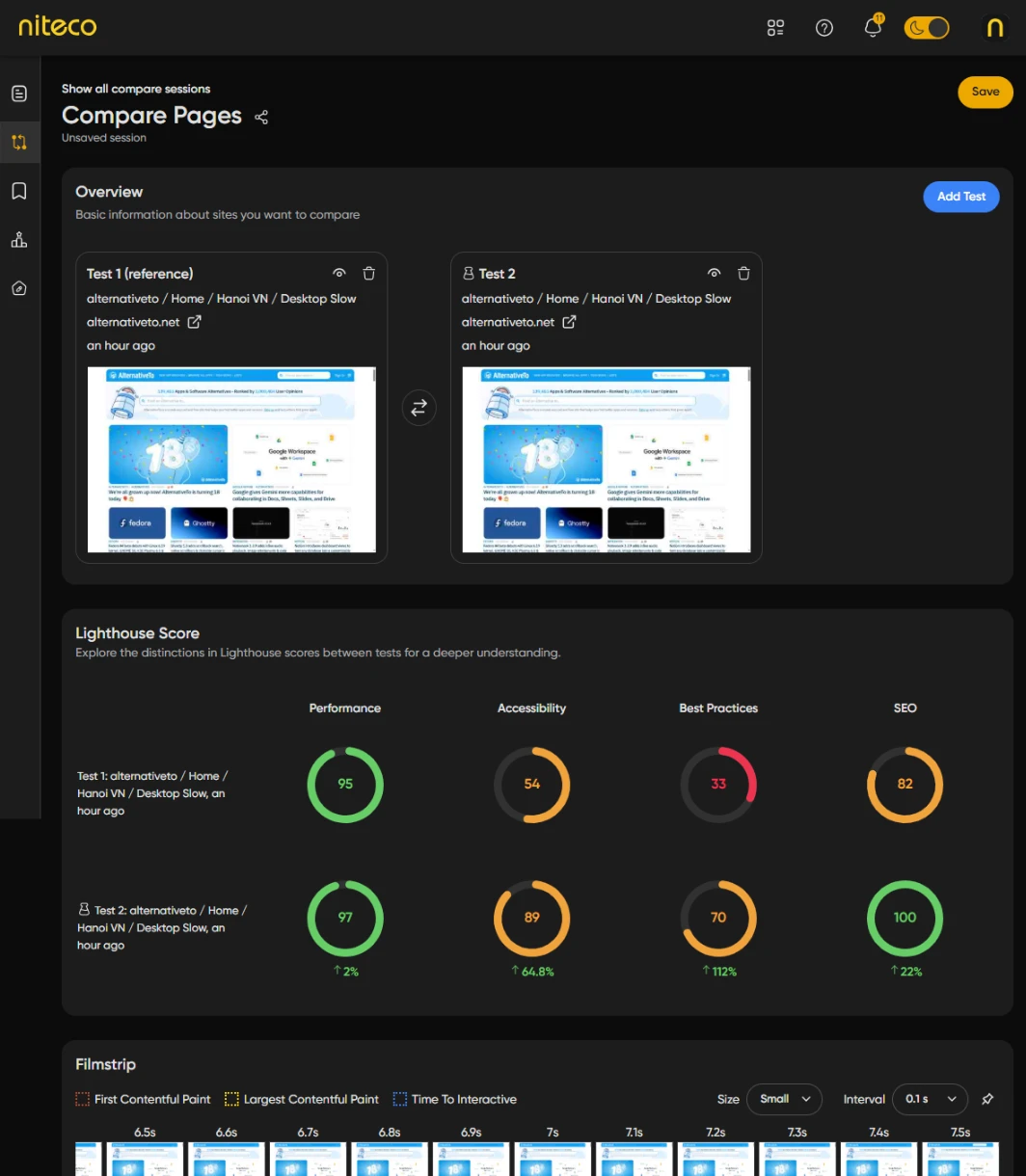
A Compare session will open automatically where the results of both tests will appear once they have completed. From there you can compare the Performance, Accessibility, Best Practices, and SEO scores side by side to see the impact of your changes.
Comparing the Lighthouse scores of the first reference test and second modified test shows us the changes to the Lighthouse scores, web vital scores and other metrics and whether the changes should be implemented int he websites source code.
For more details on comparing tests read the extended Compare Tests documentation.
Updated 6 months ago