
Printing Pages
You can print a single report page or multiple pages to PDF from the top of any report page. Printed PDFs appear in the PDFs tab of the notifications pane so you can open or download them at any time or even send them to yourself or a colleague.
Let's get started!
1. Print a Single Report Page to PDF
Open a performance report.
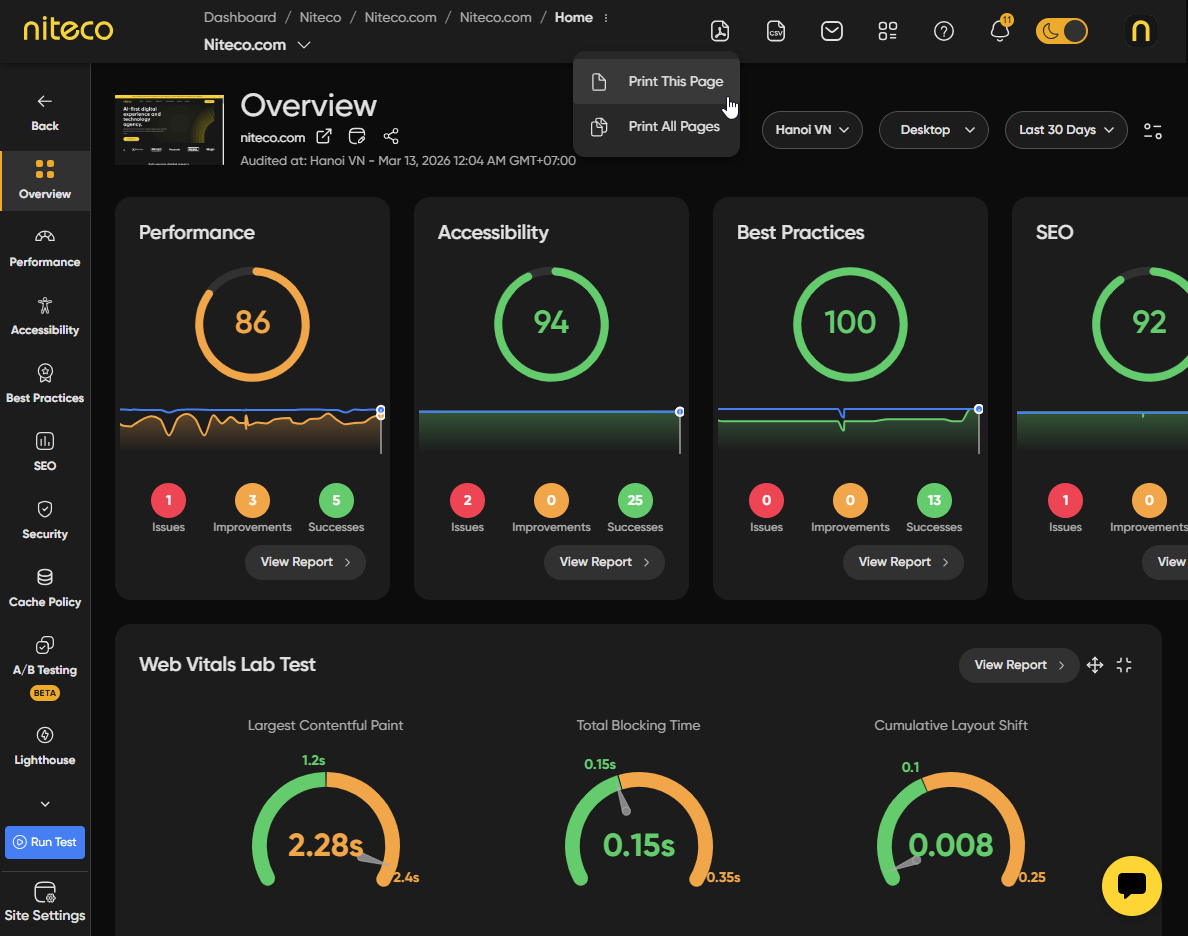
At the top of the page, click on Export to PDF (PDF icon) and choose Print This Page .
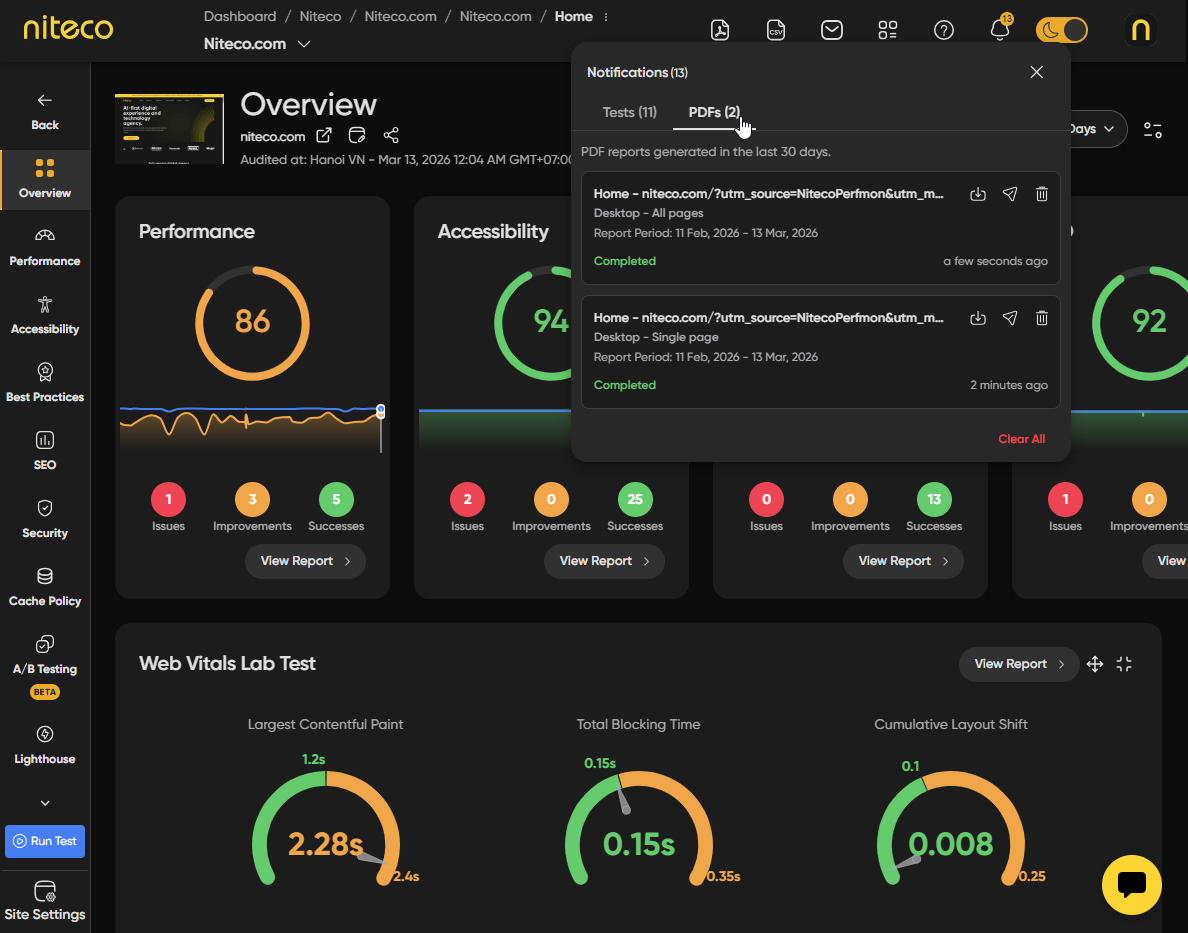
The PDF is generated in the background. When it is ready, it is added to the notifications pane.
2. Print Multiple Pages of a Report to PDF
Open a performance report.
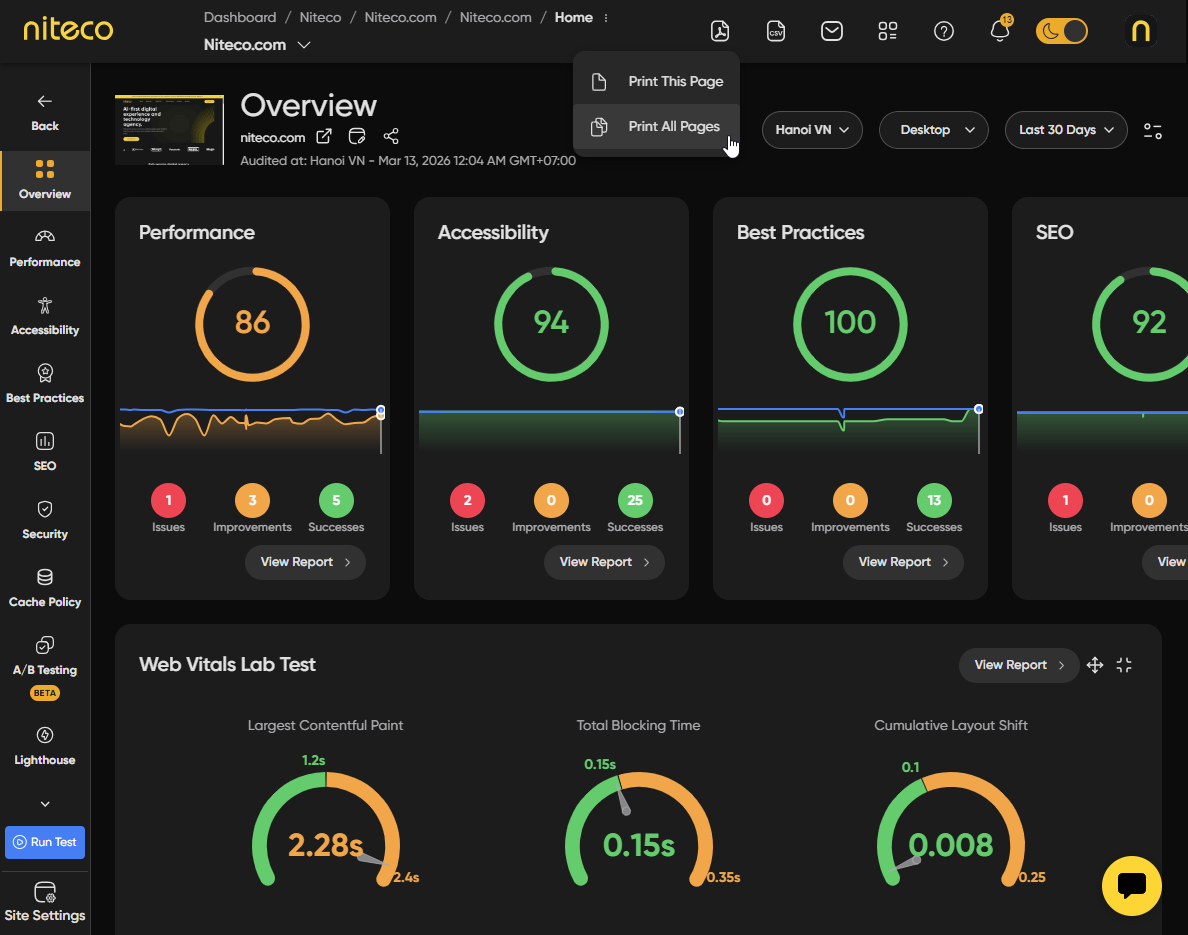
At the top of the page, click on Export to PDF (PDF icon) and choose Print All Pages .
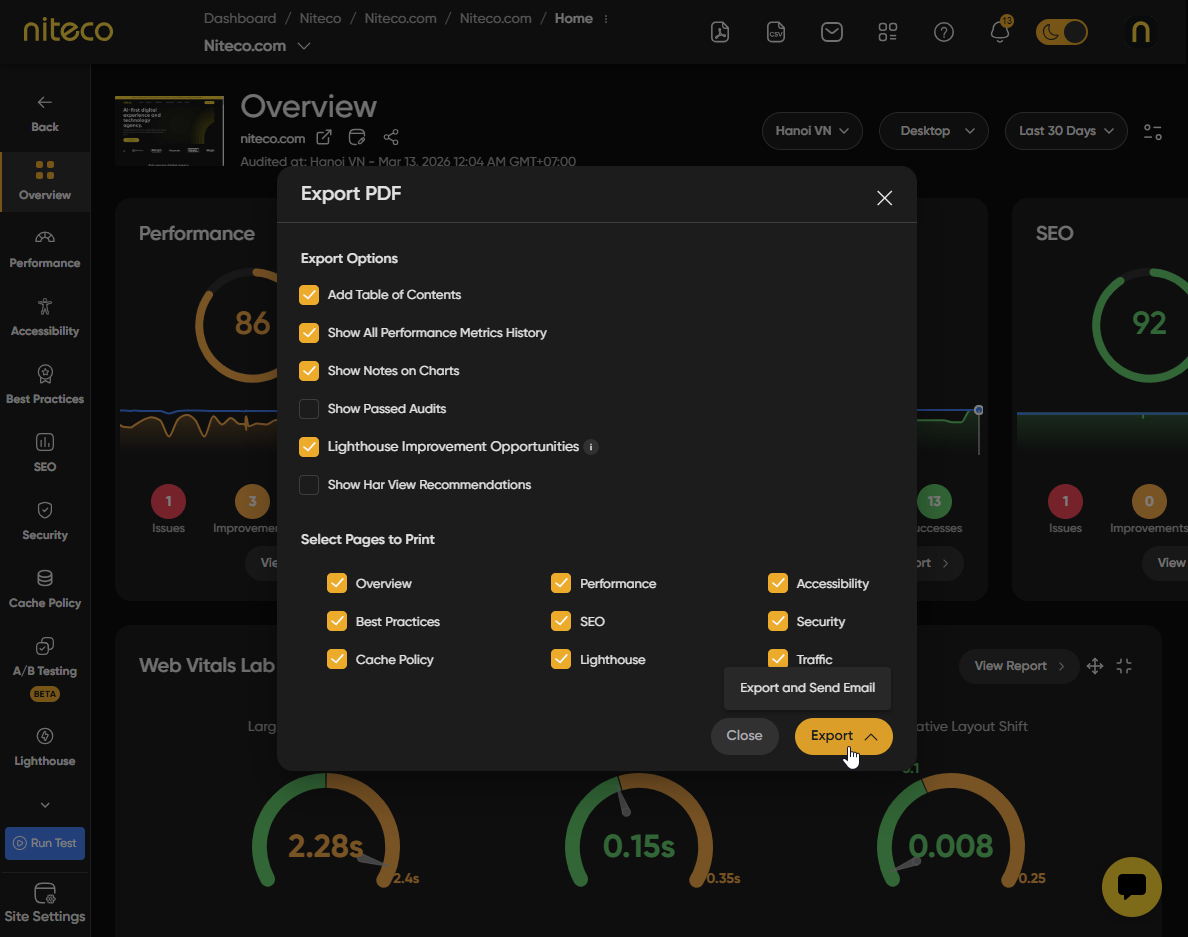
- Add Table of Contents: Includes a table of contents at the beginning of the PDF for easy navigation.
- Show All Performance Metrics History: Includes the full historical chart data for all performance metrics in the export.
- Show Notes on Charts: Includes any notes that have been added to charts in the report.
- Show Passed Audits: Includes audits that have passed alongside the failed ones. Useful for a complete audit record.
- Lighthouse Improvement Opportunities: Includes the generated Lighthouse improvement opportunities in the export.
- Show HAR View Recommendations: Includes recommendations from the HAR view analysis.
Select Pages to Print
Choose which sections of the report to include in the PDF. You can select any combination of the following pages: Overview, Performance, Accessibility, Best Practices, SEO, Security, Cache Policy, Lighthouse, and Traffic.
Updated 6 months ago