
Manage Budgets
Understanding how your testing budget works is important for managing your subscription effectively. Your budget limits depend on your plan and the check allocation included with it. Each test runs multiple checks — 3 by default — and the results are averaged to produce a more accurate score for each metric.
Budgets can be set at the client and project level, allowing you to set limits on resources both globally and at a more focused level.
Manage Client Budgets
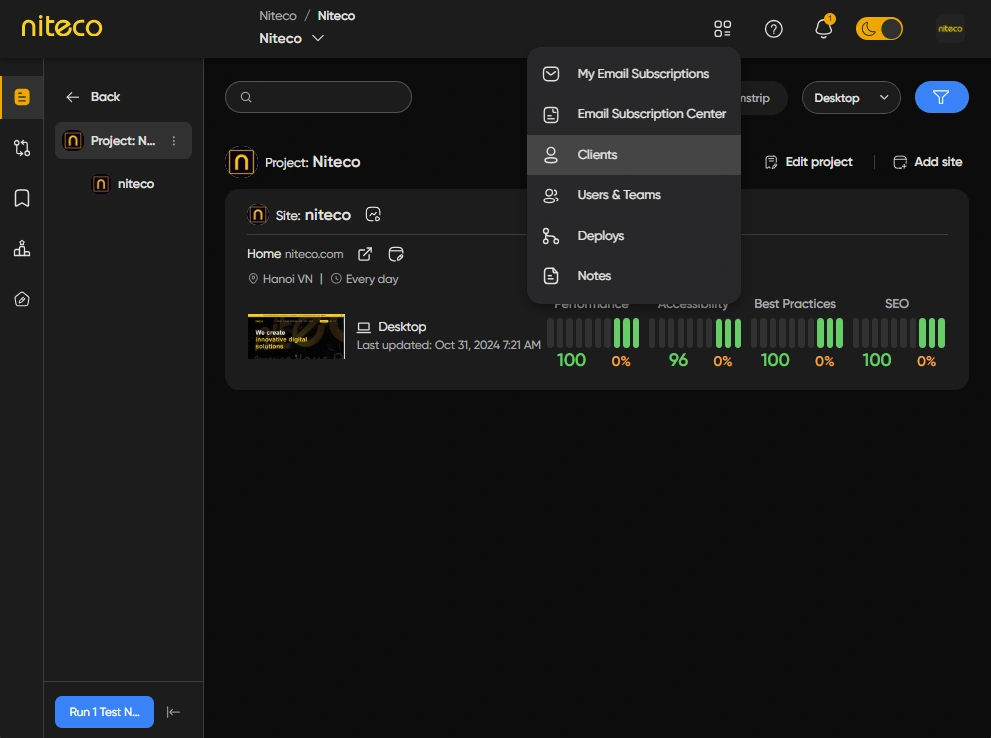
Click on Clients in the top menu.
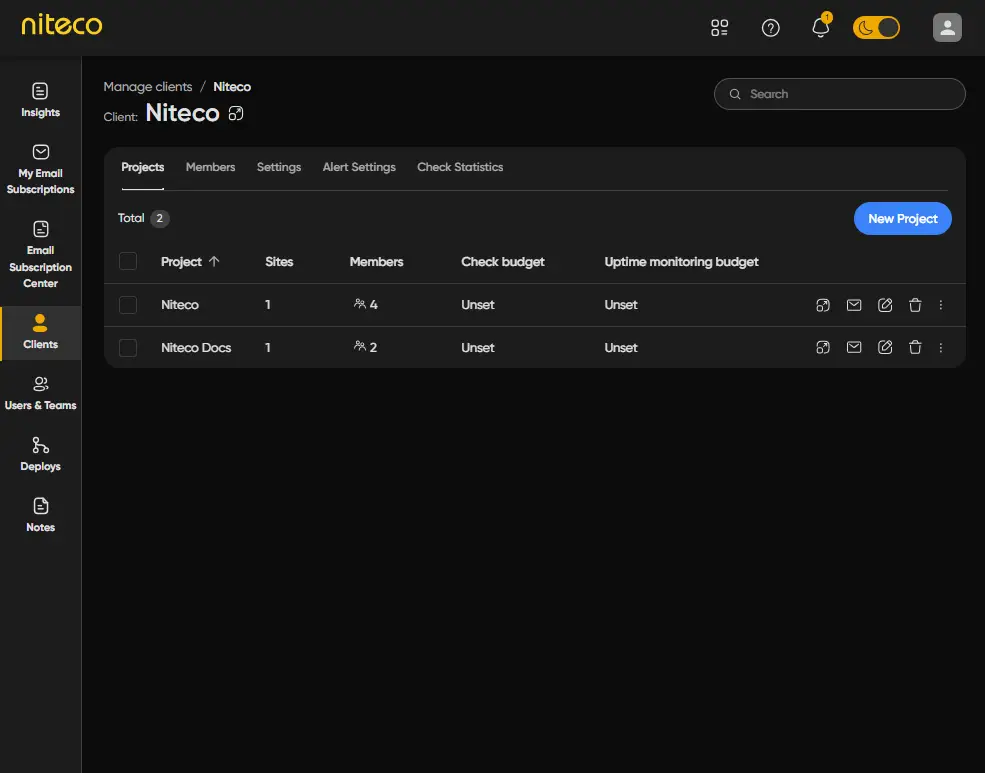
Click on the edit button to open the client's dashboard and open the settings tab.
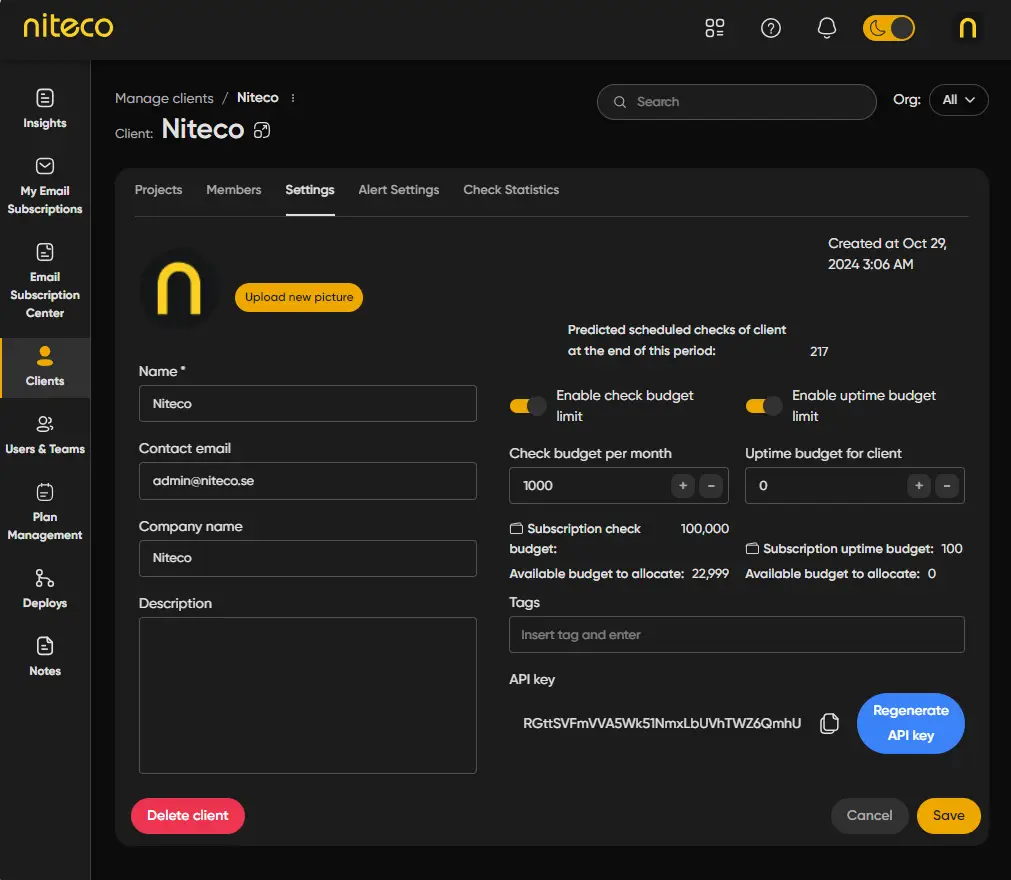
To enable budget limits click on Enable Check Budget Limit, You can see the available check and uptime budgets for your organization and set the required budget limits for the client.
Project Budgets
By default, projects inherit their clients budget settings, but it is also possible to set up budget limits for specific projects, giving you fine-tuned control of your resources.
Click on Clients in the top menu.
Click on the client that owns the project you would like to edit.
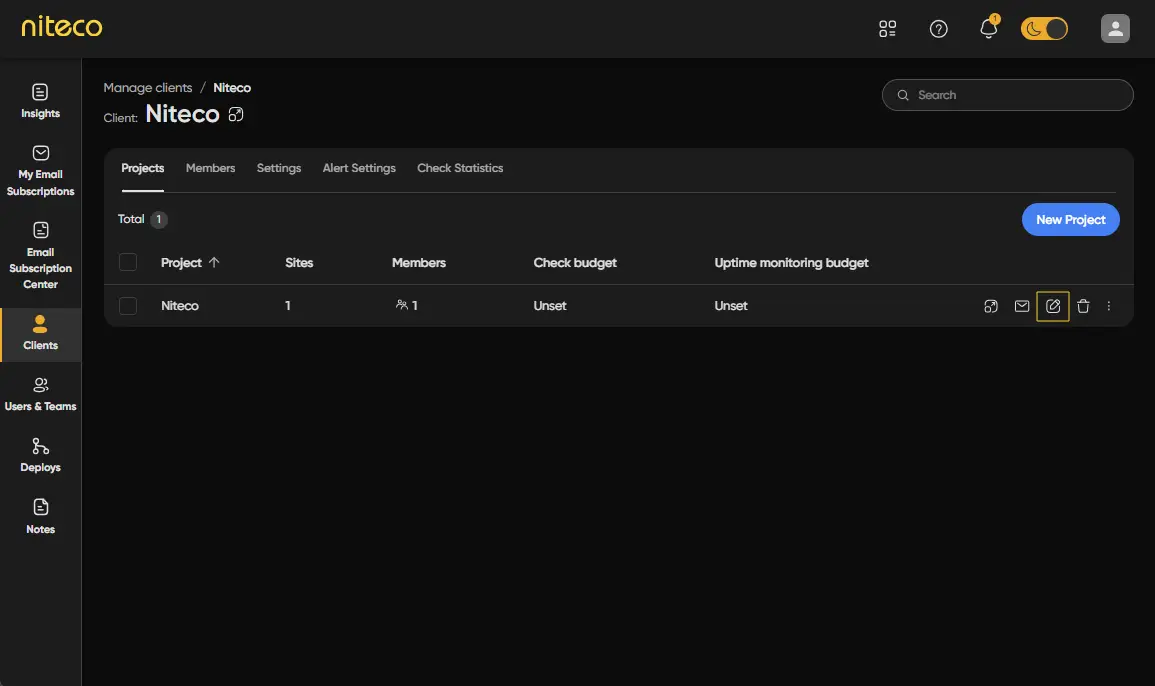
Click on the edit button to open the project dashboard and open the settings tab.
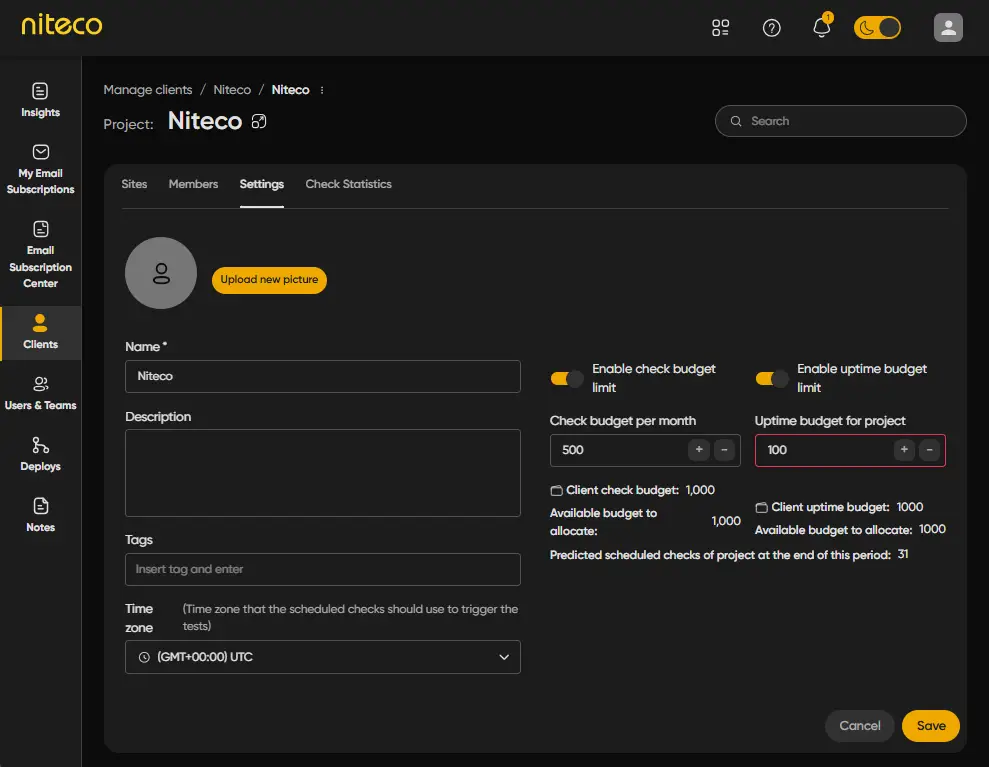
To enable budget limits click on Enable check budget limit, You can see the available check and uptime budgets for your client and can set the required budget and uptime limits for the project.
Updated 7 months ago