
Bookmarks
Bookmarks let you save specific test results for future reference. When you bookmark a test, it appears in your Bookmarks page, where you can view, organize, and revisit your saved tests at any time. You can also use bookmarks to build compare sessions—see Compare Tests for that workflow.
How to Bookmark a Test
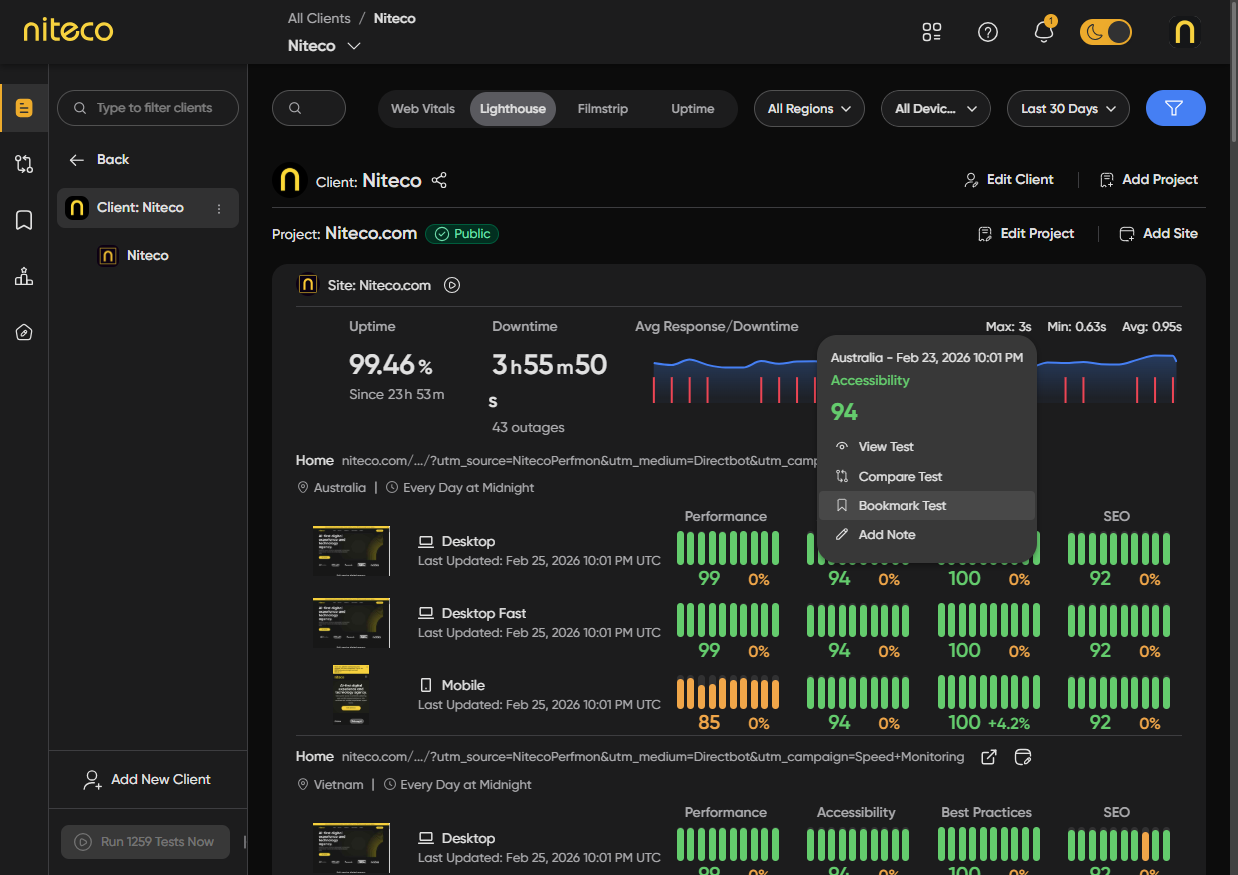
Navigate to any performance report or dashboard that shows test data in charts (for example, the Overview page, Performance charts, or Insights Dashboard).
-
Click on a data point in any chart. A menu will appear with several options.
-
Select Bookmark Test.
-
In the dialog that appears:
- Name – Enter a name for the bookmark (a default name based on site, page, device, location, and date is auto-filled).
- Description – Optionally add a description.
-
Click Add to save the bookmark.
Note: You can only bookmark each test once. If you already have a bookmark for that test, the dialog will show which existing bookmark it is.
The Bookmarks Page
Click Bookmarks in the left navigation to view all your bookmarked tests.
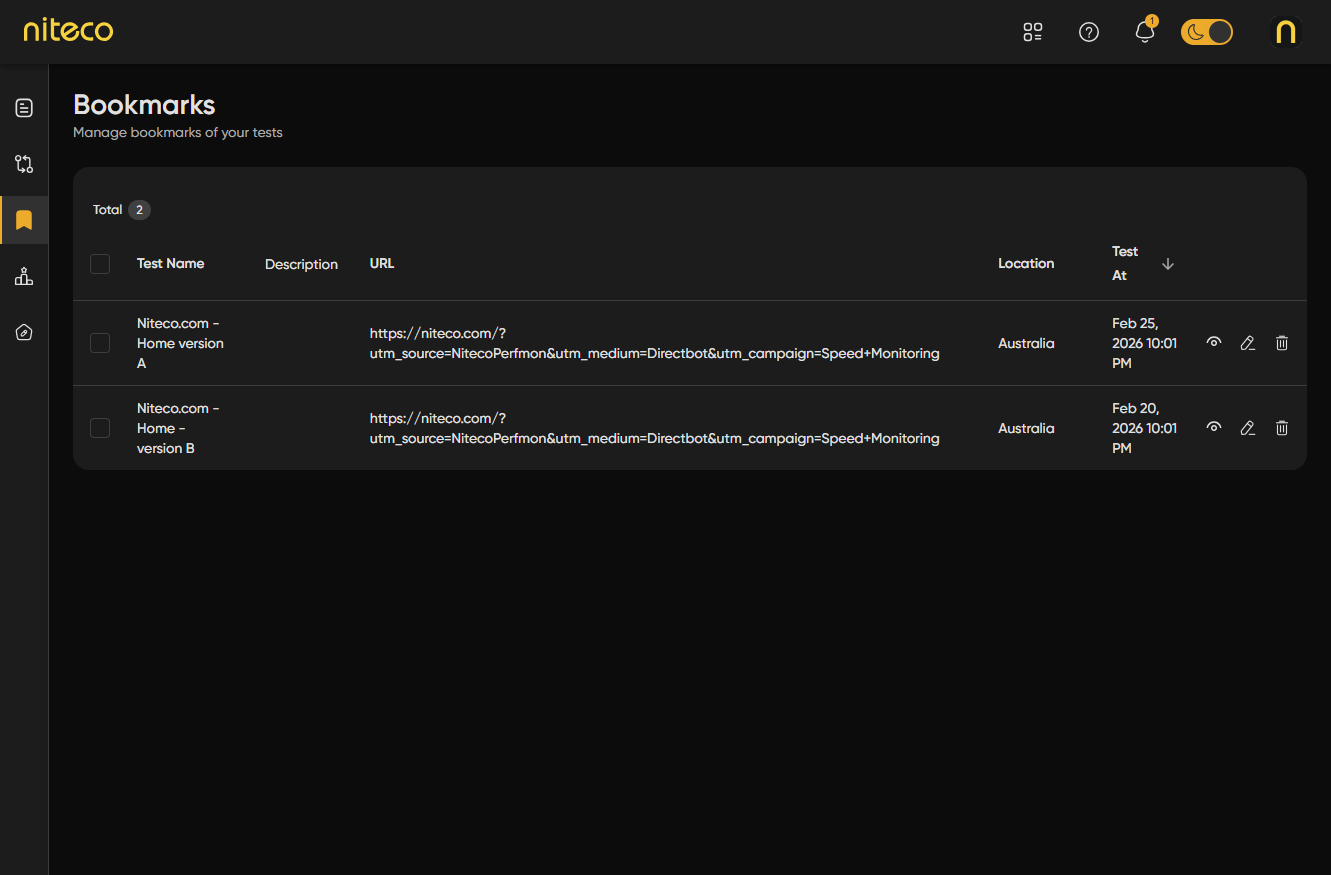
The page shows a table with:
- Test Name – The name you gave the bookmark
- Description – Your optional description
- URL – The page URL that was tested
- Location – The test location
- Test At – When the test was run
From the Bookmarks page you can:
- View – Browse all your saved tests in one place
- Edit – Change the name or description of a bookmark
- Remove – Delete selected bookmarks
- Compare – Select one or more bookmarks and add them to a compare session. Choose Compare in new session to create a new comparison, or Add to current compare session if you already have one open. For details on how to bookmark and compare tests, see Compare Tests.
Updated 8 months ago